Discover the
Modern
WordPress with WordVell
Are you not able to find a clear learning path, or are you stuck between multiple learning paths and not sure which one will actually make you a real WordPress theme developer in 2026?
This confusion is the biggest reason most beginners waste months and are not able to scale their skills to that level, which helps them to build themes that match today’s WordPress ecosystem or meet real hiring expectations.
In this practical guide, you’ll learn exactly how to become a WordPress theme developer through 12 structured steps, taking you from zero or basic knowledge to building real, production-ready themes.
It includes:
You should read this if you’re:
You shouldn’t read this if you avoid coding or want instant results because this takes months, not days.
But if you stay consistent, the skill compounds.
A WordPress theme developer builds and maintains the visual and structural layer of WordPress websites.
They turn designs into working themes.
Some focus on block themes and Full Site Editing.
Others specialize in classic themes, WooCommerce layouts, performance, or accessibility.
Different paths but the same core skill, which is shaping how WordPress looks and behaves.
As a theme developer, you will be building templates, styling layouts, and wiring theme features.
It’s hands-on work, and you will try to constantly balance design, code, and usability.
The Short answer is absolutely yes. But not for the reasons people expect.
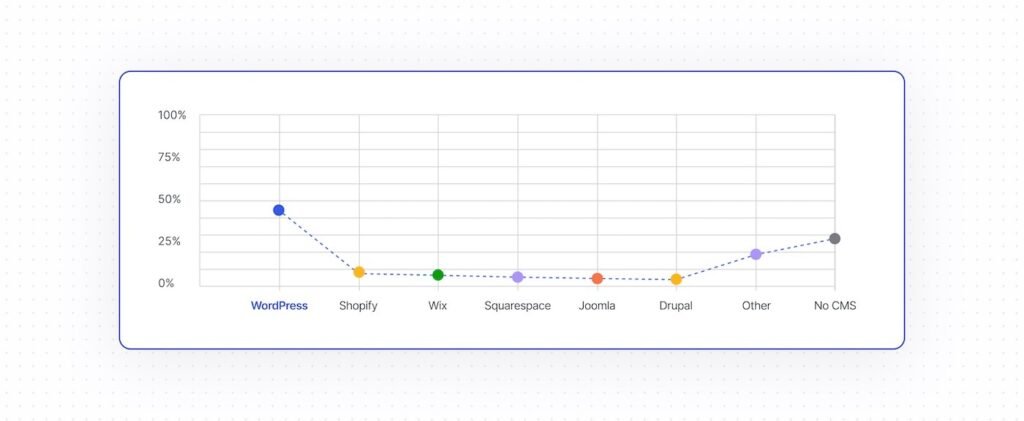
WordPress powers 43–43.6% of all websites worldwide. That scale alone keeps demand alive.
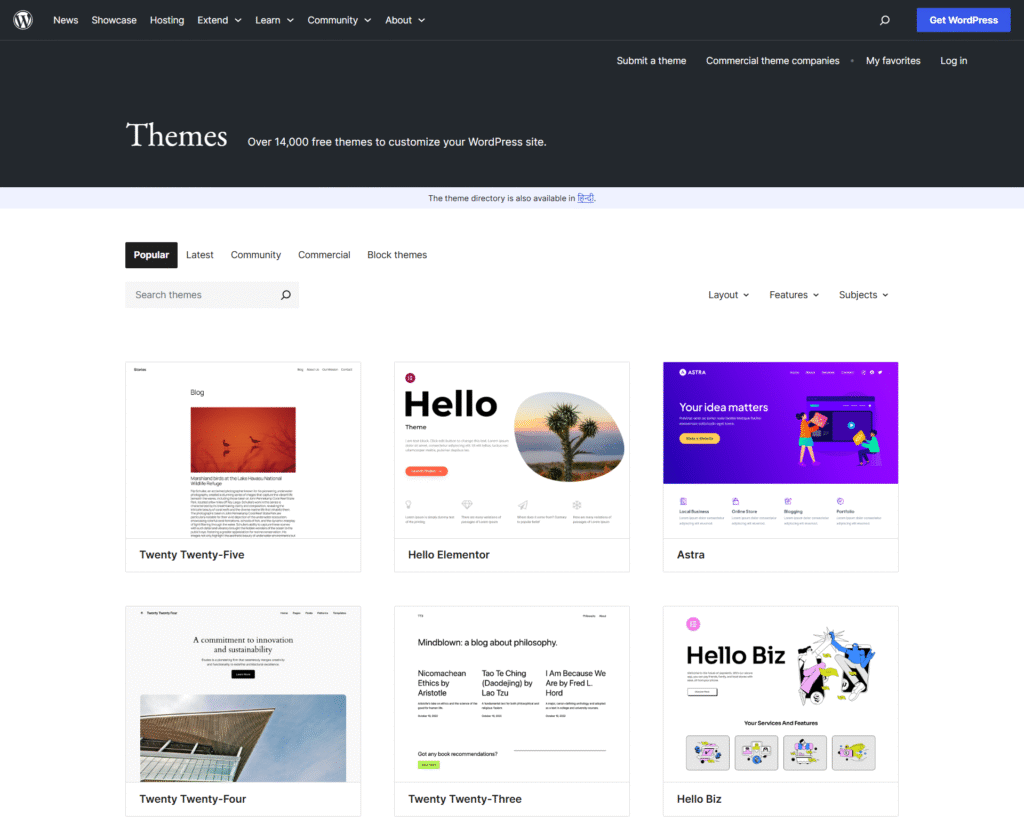
As per the data of WordPress.com, there are 60,000+ plugins and 14,000+ themes, and businesses still need custom work. Especially when off-the-shelf themes break or don’t scale.
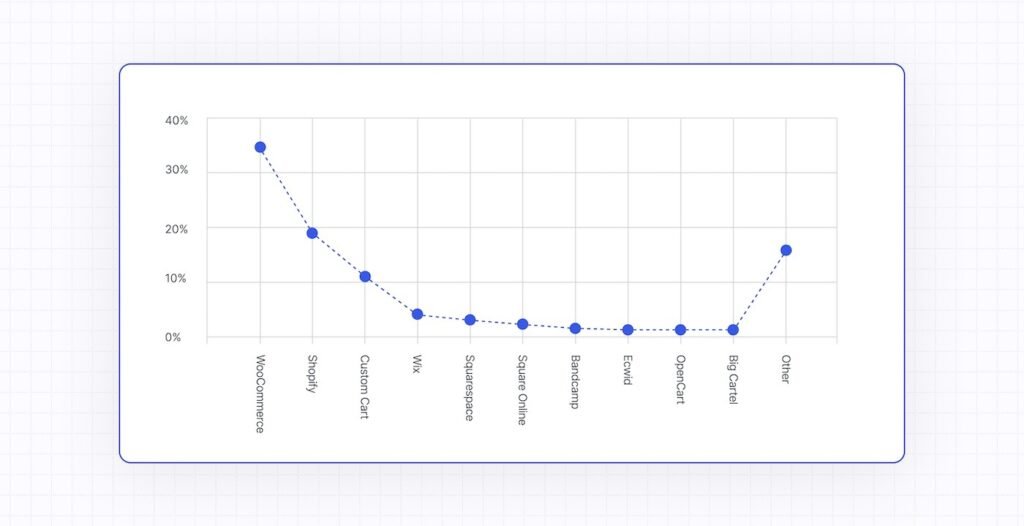
WooCommerce powers 33% of online stores, and custom theme work around eCommerce continues to grow.
Headless and custom setups increased by roughly 40%, driving demand for developers who understand structure, not just styling.
On LinkedIn alone, there are 2,000+ WordPress developer jobs in the US, which include full-time, freelance, and remote opportunities.
Block themes and Full Site Editing changed the game in the modern WordPress Era.
Real opportunities sit in custom blocks, performance tuning, accessibility, and scalable themes.
Competition still exists, but skilled theme developers still stand out.
Money matters, so let’s be direct.
Entry-level developers (0–2 years) usually earn $57,000–$65,000. During this role, you will be assisting in basic development, fixing bugs, and handling smaller builds.
Mid-level developers (2–5 years) earn $70,000–$95,000. You will manage full themes, customize plugins, and solve real problems.
Senior developers (5+ years) earn $100,000–$150,000+. They specialize in WooCommerce, APIs, performance, or security.
| Level | Experience | Salary | Freelance Rate |
|---|---|---|---|
| Entry | 0–2 yrs | $55k–$65k | $25–$50/hr |
| Mid | 2–5 yrs | $70k–$95k | $50–$100/hr |
| Senior | 5+ yrs | $100k–$150k+ | $100–$200+/hr |
| Specialist | 5+ niche | $110k–$170k+ | $150–$300+/hr |
According to ZipRecruiter, the US average salary for WordPress Developers is $84,542/year. And Talent.com reports it is around $77,500/year.
WordPress Developer Salaries also vary depending on the Region:
The good thing is that the remote work narrows that gap.
Freelancing scales with skill. So, the WordPress freelancers’ rates vary depending on their experience
Project pricing looks like this:
Hourly rates by region:
On Upwork, many WordPress developers charge $15–$28/hr. That’s not the ceiling. It’s the floor.
Rates also depend on portfolio, communication, specialization, and reliability.
The trend has a steady growth. Salaries climbed from $65k in 2019 to $84k in 2025.
| Year | Average Full-Time Salary (USD) |
|---|---|
| 2019 | ~$65,000 |
| 2020 | ~$68,000 |
| 2021 | ~$72,000 |
| 2022 | ~$75,000 |
| 2023 | ~$77,000 |
| 2024 | ~$79,000 |
| 2025 | ~$84,000 |
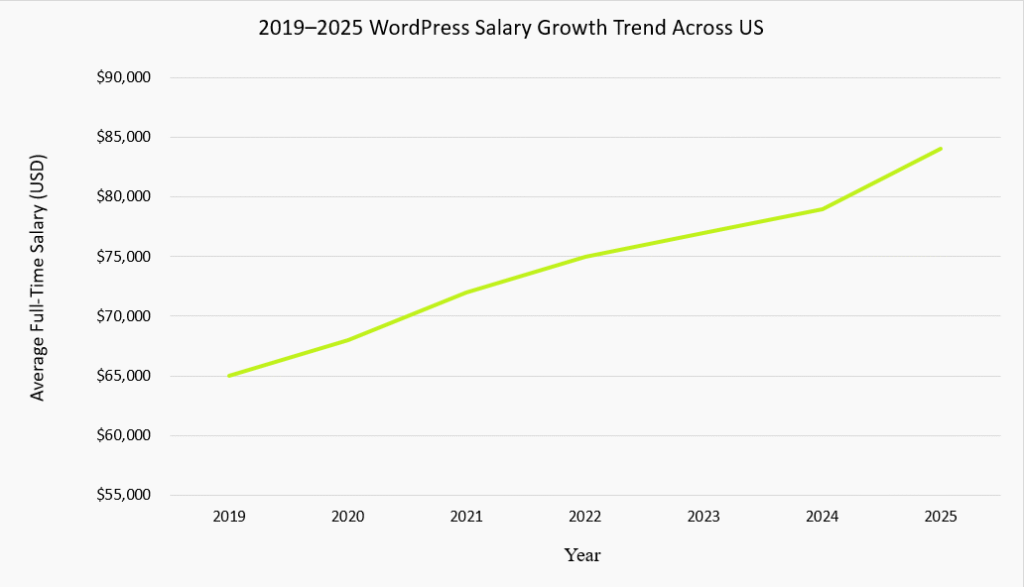
The jump aligns with block themes, FSE, and more complex site needs.
High-demand areas right now in the WordPress development niche are:
Developers who adapt will keep moving up.
This roadmap is for learners who want a practical, skill-based path to becoming a WordPress theme developer, not just someone who installs themes.
It suits for beginners who are willing to learn fundamentals, designers who want to code their own themes, and developers aiming to specialize in WordPress.
This roadmap will not turn you into a developer overnight, teach shortcuts to instant income, or focus on drag-and-drop tools.
If your goal is quick freelancing with page builders, or purely visual design with no coding, alternative paths like Elementor-based workflows or UI/UX design may suit you better.
Learning WordPress theme development is a months-long process, not weeks.
A realistic timeline looks like this:
Full-time learners can progress faster, while part-time learners should expect slower but steadier growth.
Progress depends on consistency, prior coding experience, and how much you practice by building instead of watching tutorials.
Skipping fundamentals may feel faster initially, but it slows you down later.
You do not need to be an expert developer to start, but certain knowledge helps.
Basic HTML and CSS familiarity make the journey smoother. You should understand tags, layouts, and responsive design. If not, you can learn these alongside WordPress.
Basic programming fundamentals, such as variables, conditions, and loops, help when learning PHP. You don’t need deep computer science knowledge, just logical thinking.
Prior WordPress usage experience is a bonus. If you’ve installed themes, used the dashboard, or managed content, you’ll understand the ecosystem faster.
Understanding design principles like spacing, typography, and color hierarchy helps you build usable and beautiful themes, not just functional ones.
If you have zero background, start simple: learn HTML/CSS basics, install WordPress locally, explore existing themes, and gradually move into PHP.
WordPress is beginner-friendly, but only if you respect the learning curve.
This roadmap follows a progressive learning flow where each step builds directly on the previous one.
You start with development environment setup, move into fundamentals, then specialize.
While the order is intentional, the path remains flexible. Experienced learners may skip basics; beginners should not.
Local development allows you to build, break, and experiment safely without affecting live websites.
It is a non-negotiable step for serious theme developers.
Install a local server using tools like Local WP, XAMPP, or Docker.
Then install WordPress locally and verify the admin dashboard works correctly. Add essential development plugins such as Query Monitor and Debug Bar.
You can use these tutorials to fulfill this task:
Initialize Git to track changes and prevent data loss. Enable debugging using WP_DEBUG and browser tools like console.log.
Checkpoint: You should have a fully working local WordPress site under version control.
This step builds the technical base required for theme development. Skipping it leads to fragile themes, slow progress, and long-term confusion.
Start by understanding how WordPress works as a content management system. Learn installation, basic configuration, and dashboard navigation.
Understand the difference between posts and pages, how the media library works, and how users and roles control access. Learn key settings like permalinks, reading, and discussion options.
We recommend that you follow this Official WordPress Course to learn the WordPress Ecosystem as a beginner.
You can also watch this WordPress tutorial by Darrel Wilson
These basics help you think like WordPress, not just code inside it.
Learn HTML with a focus on semantic markup, forms, and accessibility. Clean structure matters more than visual polish.
Master CSS fundamentals concepts like selectors, box model, Flexbox, Grid, and responsive layouts. Avoid frameworks initially.
Learn JavaScript basics: DOM manipulation, events, and simple AJAX concepts.
Build small practice projects for each skill. Move forward once you can build simple layouts confidently.
Learn PHP fundamentals, variables, functions, arrays, loops, conditionals, and basic OOP concepts. Focus on developing practice projects.
Understand MySQL basics like tables, rows, and simple queries. Learn how WordPress uses PHP to fetch and store data in MySQL.
Study common WordPress PHP patterns rather than generic PHP alone.
This is where WordPress becomes predictable.
Understand the WordPress hooks system (actions and filters) and why WordPress relies on them.
Learn core concepts like the request lifecycle and template hierarchy.
Study the database structure at a high level and adopt the “WordPress way” instead of custom shortcuts.
Checkpoint: Build a small PHP/MySQL project and demonstrate basic hook usage.
Start with block themes because they represent modern WordPress development.
Block themes are the current standard, align with Full Site Editing, and are actively supported by WordPress core.
They reduce reliance on PHP-heavy templates and offer a gentler learning curve for beginners.
More importantly, block themes are future-proof. WordPress is investing heavily in blocks, patterns, and JSON-based configuration.
Learning block themes first positions you ahead of legacy workflows and aligns your skills with where the industry is going.
This step introduces the core building blocks of modern WordPress themes, files, folders, and configuration, so you can move from theory to an actual working block theme.
A block theme uses a simplified structure. Core folders include /templates, /parts, and optionally /patterns.
Unlike classic themes, layout logic lives in HTML files instead of PHP.
Follow WordPress naming conventions strictly because a clean structure improves compatibility, editor behavior, and long-term maintainability.
Every block theme requires a style.css file. Its primary purpose is theme registration, not styling.
The header defines metadata like theme name, author, version, and text domain.
Proper formatting is critical because WordPress parses this file to recognize and load your theme correctly.
Templates define how content is displayed. In block themes, templates are HTML-based, built entirely with blocks.
Unlike PHP templates, they contain no conditional logic. You’ll create files like index.html and single.html to control layout while WordPress handles data rendering.
Block themes still use functions.php, but more sparingly. It’s used to enqueue scripts and styles, add theme support features, and register functionality.
Avoid layout logic here because block themes rely on configuration and blocks, not PHP-driven presentation.
All assets, CSS, JavaScript, images, and fonts must be included using proper WordPress enqueue methods. Never hardcode file paths.
Correct enqueuing ensures performance optimization, avoids conflicts, and keeps your theme compatible with plugins and future WordPress updates.
theme.json is the heart of block themes. It defines global styles, editor settings, colors, typography, spacing, and layout rules.
Basic configuration here replaces large amounts of CSS and PHP. Mastering theme.json is essential for building modern, future-proof themes.
Checkpoint: Create a valid block theme folder with required files and a basic theme.json configuration.
This step is where block themes become powerful. You’ll control design, layout, and behavior globally without bloated CSS or complex PHP using a single configuration file.
theme.json is the configuration backbone of block themes. It defines design rules, editor behavior, and styling defaults.
The file follows a structured JSON format and supports versioning to maintain backward compatibility. Understanding its syntax prevents conflicts and future upgrade issues.
Settings control what users can customize. You define color palettes, typography options, layout widths, spacing, and dimensions.
You can also lock or expose custom settings. Proper settings design keeps sites flexible for editors while preserving visual consistency.
Styles define how things look by default. You can apply global styles, block-specific styles, and element-level styling.
Style inheritance ensures consistency across templates while allowing targeted overrides. This replaces large CSS files with structured, predictable styling rules.
theme.json allows you to register custom templates with metadata. You can define templates for specific post types or use cases.
This makes templates discoverable inside the editor and reduces manual template file management.
You can register block patterns directly in theme.json. Define pattern categories, descriptions, and properties for better editor organization.
Patterns speed up page building and standardize layouts across sites without locking users into rigid structures.
Template parts handle reusable sections like headers, footers, and sidebars.
You define template part areas and reuse them across templates. This promotes consistency and simplifies updates across an entire site.
Style variations allow multiple visual designs within one theme. You define alternative color, typography, and spacing presets and switch between them instantly.
This is ideal for theme demos, branding flexibility, and client customization without child themes.
Templates control how WordPress displays content. This step helps you predict layout behavior, avoid surprises, and design themes that behave correctly across all content types.
Templates define the structure of pages, posts, and archives. In block themes, templates are HTML files built with blocks, not PHP logic.
Classic templates rely on conditional PHP files, while block templates focus on layout, letting WordPress handle data and logic behind the scenes.
Every block theme requires an index.html template. Additional templates include home, front-page, single, page, and archive templates.
You can also create custom templates for specific use cases. All templates are built visually using blocks inside HTML files.
Template hierarchy determines which template WordPress loads. WordPress follows a fallback system, checking the most specific template first, then falling back to general ones.
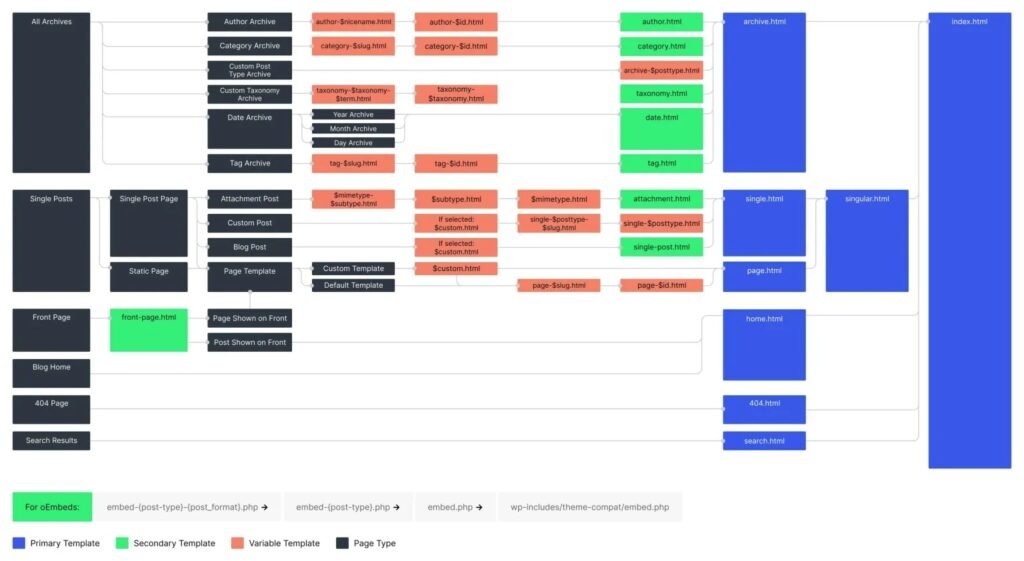
Block themes follow the same logic as classic themes but use HTML files. Custom post types can have dedicated templates.
Template parts are reusable sections like headers and footers. You create them once and reuse them across templates.
Block themes support custom template parts for any layout section, and you insert them using the Template Part block to maintain consistency.
Checkpoint: Build all essential templates and confirm the hierarchy behaves correctly across posts, pages, and archives.
Patterns help you design reusable layouts without hardcoding structure. This step teaches you how to scale design systems efficiently across entire WordPress sites.
Block patterns are pre-designed block layouts that users can insert anywhere. Unlike template parts, patterns are copied into content and then customized.
Use patterns for sections like hero areas, testimonials, or pricing blocks that repeat with variation.
Patterns can be registered using PHP or through a /patterns directory. Each pattern includes headers defining title, categories, and keywords.
Proper structure improves discoverability and keeps your pattern library organized as it grows.
Patterns can include PHP for dynamic content. You can use conditional logic and WordPress functions to adapt patterns based on context.
This is useful for user-specific data, featured content, or dynamic calls to action.
Patterns can be inserted directly into templates or offered as editor choices.
This allows designers to maintain layout consistency while still giving editors flexibility to customize content without breaking structure.
Starter patterns define default layouts for new sites. They’re commonly used for homepages or full-page designs.
These patterns accelerate site setup and give users a strong starting point instead of a blank canvas.
Block type patterns suggest layouts for specific blocks.
They guide users toward better design decisions by offering contextual layout options, improving usability, and visual consistency across the site.
Block locking restricts how patterns can be modified. You can fully lock patterns or allow partial editing.
This is essential for client projects where the structure must remain intact while still allowing content updates.
Checkpoint: Create a structured pattern library covering common sections and use cases.
Block-specific features let you go beyond layouts and control how individual blocks behave, look, and scale without bloating your theme or locking users into rigid designs.
Block style variations allow multiple visual styles for the same block. You register custom styles and apply CSS selectively.
This gives users design options without adding new blocks, keeping themes lightweight and editor-friendly.
Block stylesheets load CSS only when a block is used. This improves performance by avoiding unnecessary styles on pages that don’t need them.
Proper implementation reduces CSS payload size and aligns with WordPress’s performance-first direction.
Block variations are predefined versions of existing blocks with different attributes or inner blocks.
They guide users toward specific layouts or use cases, such as call-to-action sections or media layouts, without overwhelming the editor with new blocks.
Advanced block patterns combine multiple blocks into complex, reusable layouts.
You can nest patterns and design transformations that adapt to different contexts. These patterns help enforce design systems while still allowing editorial flexibility.
Checkpoint: Create custom block styles, variations, and optimized block-specific stylesheets.
Advanced block theme topics cover internationalization, child themes, building workflows, privacy, testing, debugging, security, publishing, hooks, UI, and JavaScript best practices to make your theme production-ready and scalable.
Make your theme translation-ready by implementing WordPress internationalization.
Use text domains consistently, apply translation functions (__(), _e(), _n()), and include .pot language files. This ensures your theme works globally and supports multilingual plugins.
Child themes let you safely extend a parent block theme. Use them for customizations without modifying the parent.
Set up a child style.css and functions.php properly to enqueue styles, add features, and override templates while maintaining compatibility with updates.
Use Node.js and npm to manage dependencies. Implement build tools like Webpack or Vite to compile assets, minify CSS/JS, and optimize images.
A proper build workflow ensures faster performance, consistent asset management, and smooth development-to-production deployment.
Themes must handle privacy responsibly. Include privacy policies, cookie notices, and manage user data securely.
Ensure theme code does not store unnecessary personal information and aligns with GDPR, CCPA, or other regional privacy regulations.
Test your theme across browsers, devices, and screen sizes. Conduct accessibility audits and basic unit testing.
This ensures consistent functionality, responsive layouts, and usability for diverse users.
Enable WordPress debug mode to catch errors. Use error logs, debugging plugins, and browser developer tools.
Understand common PHP/JS issues and effective strategies for tracing and fixing problems quickly during development.
Follow theme security best practices: sanitize inputs, validate data, escape outputs, use nonces, and enforce permissions.
Protect against XSS, SQL injections, and common vulnerabilities to keep users’ sites safe.
Prepare your theme for public release. Follow WordPress.org theme guidelines or commercial marketplace rules.
Include licensing, documentation, and support instructions. Ensure all assets, patterns, and templates are optimized for end users.
Use the Theme Check plugin for standards compliance. Perform manual testing checklists: responsiveness, block behavior, accessibility, performance.
Consider automated testing tools for repeated validation and consistency across updates.
Create custom hooks in your theme for extensibility.
Follow best practices for actions and filters, document your hooks clearly, and enable other developers to extend theme functionality without modifying core files.
Follow user interface principles: clarity, consistency, and accessibility. Match WordPress UI conventions.
Ensure typography, colors, and controls are consistent and usable across blocks, templates, and global settings.
Use modern JavaScript, WordPress JS APIs, and React when building dynamic block themes.
Optimize performance, avoid global pollution, and ensure compatibility with WordPress editor and front-end scripts.
Checkpoint: Build a production-ready, secure, optimized block theme that is internationalized, well-tested, performance-focused, and extensible.
Even though block themes are the future, classic themes still matter.
Many businesses still run stable sites, built years ago, with classic themes, and have no urgency to migrate.
You’ll encounter classic themes when maintaining legacy projects, fixing bugs, or extending existing client sites. Agencies still rely on them heavily.
Learning classic themes also gives you a complete understanding of WordPress.
You’ll work directly with PHP templates, conditional logic, and the traditional template hierarchy.
From a career perspective, this widens your opportunities. Developers who understand both classic and block themes are more versatile, more hireable, and harder to replace.
Classic themes aren’t obsolete. They’re still part of real-world WordPress work.
This step covers the traditional WordPress theme system, which includes PHP templates, the Loop, and conditional logic so you can confidently build, debug, and maintain classic themes in real projects.
A classic theme needs at least style.css and index.php to function. The stylesheet registers the theme, while index.php acts as the fallback template.
functions.php adds features and configuration. Other essential files support the structure and functionality.
Classic themes follow a predictable folder structure. Templates live in the root, assets go into /css, /js, and /images.
Use clear naming conventions and logical grouping. Clean structure improves readability, collaboration, and long-term maintenance.
Taxonomies organize content. WordPress includes categories and tags by default, and you can register custom taxonomies.
Learn how taxonomy archives work and how to create custom templates to display taxonomy-based content properly.
Conditional tags help templates adapt to context. Functions like is_single(), is_page(), and is_archive() control logic flow.
They’re essential for building flexible layouts and handling different content types correctly.
Always use wp_enqueue_style() and wp_enqueue_script().
Declare dependencies, version assets properly, and load files conditionally when needed. Correct enqueuing prevents conflicts and improves performance.
Use get_template_directory_uri() and get_stylesheet_directory_uri() to reference assets correctly.
This ensures compatibility with child themes and avoids broken paths across environments.
The style.css file includes required theme headers and core CSS. Organize styles logically and account for child theme overrides.
Clean CSS structure makes themes easier to extend and debug.
Use a modular approach. Store reusable logic in an /inc folder and separate assets cleanly.
Organized files reduce duplication and keep functions.php manageable.
WordPress includes default post types like posts and pages. You can register custom post types for specialized content.
Learn how template files control their display and behavior.
Classic themes rely on multiple template files, like single.php, page.php, and archive.php. You can also create custom templates for specific layouts.
Understand when to use page templates versus post templates.
Template hierarchy defines which file WordPress loads.
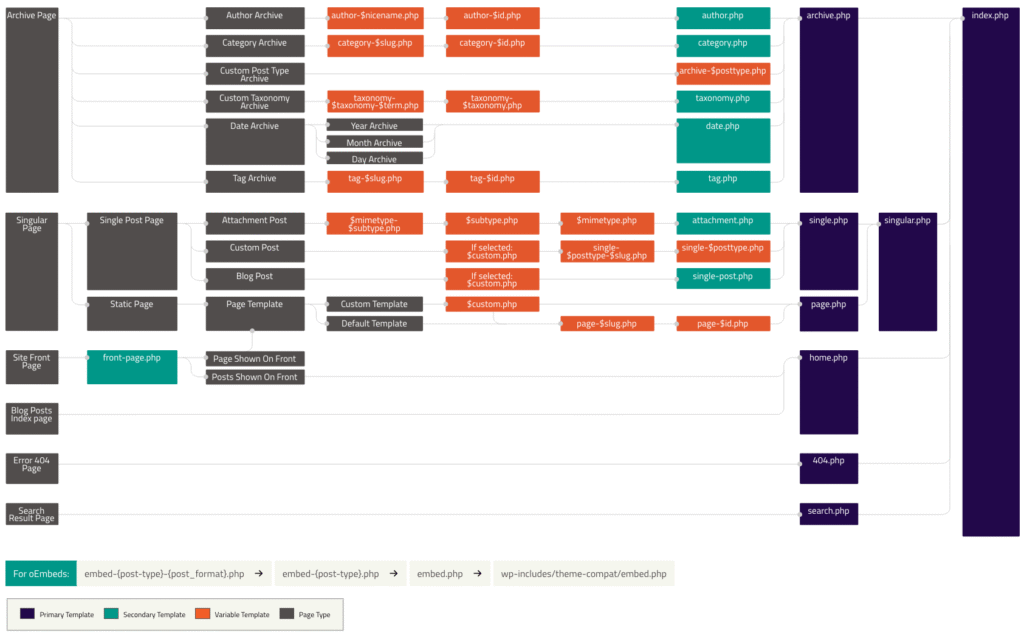
It follows a strict fallback order. Classic themes rely heavily on this system, which differs from block themes in structure but not in logic.
Template tags output dynamic data like titles, content, and metadata.
Learn essential tags, combine them with conditional tags, and create custom template tags to keep templates clean.
The Loop controls how posts are retrieved and displayed. Learn the main Loop, multiple loops, and custom queries using WP_Query.
Mastering the Loop is critical for classic theme development.
functions.php handles theme setup, menu and widget registration, and feature support.
Keep setup logic organized and reusable. This file acts as the theme’s control center.
Starter themes like Underscores provide clean foundations.
Theme generators and official WordPress documentation speed up learning and reduce errors when building classic themes.
Checkpoint: Build a fully functional classic theme from scratch using proper structure, templates, and WordPress best practices.
This step focuses on adding essential functionality that turns a basic classic theme into a production-ready solution.
These features improve usability, accessibility, flexibility, and compatibility with real-world client and business requirements.
Custom 404 templates help guide users when content is missing.
A well-designed 404 page should provide clear messaging, navigation links, search functionality, and branding consistency to reduce bounce rates and improve user experience.
Accessibility ensures your theme is usable by everyone.
Follow WCAG guidelines, support keyboard navigation, enable screen readers, add skip links, and use proper ARIA attributes.
Accessibility is increasingly required for enterprise and government projects.
Classic themes historically added admin menu pages for theme options, but this approach is now discouraged.
Complex settings should be handled via plugins or the Customizer. Themes should focus on presentation, not business logic.
Even in classic themes, block content must remain accessible.
Test block patterns for keyboard navigation, semantic markup, and screen reader compatibility.
Accessibility issues often arise from improperly styled or overridden core block styles.
Use add_theme_support() to enable WordPress core features like post thumbnails, custom backgrounds, HTML5 markup, and automatic feed links.
These features ensure compatibility with plugins, blocks, and future WordPress updates.
Custom background support allows users to control background colors or images via the Customizer.
Proper implementation ensures defaults are respected while allowing flexibility without breaking layout or readability.
Classic themes should support static front pages.
Create custom homepage templates, define a posts page, and handle conditional logic properly so users can control their site structure from WordPress settings.
Custom headers allow flexible branding.
Support image and video headers, define default dimensions, and ensure responsive behavior. Headers should integrate cleanly with navigation and avoid layout shifts.
Adding custom logo support lets users upload and manage branding easily.
Implement logo output with fallbacks for text-based site titles to maintain accessibility and SEO best practices.
Enable post thumbnails and define multiple image sizes for different contexts.
Proper usage improves performance and design consistency across archives, single posts, and custom templates.
Internationalization prepares your theme for translation. Use translation functions, generate POT files, and structure language files correctly.
This step is mandatory for themes intended for global distribution.
Localization adapts your theme for specific languages and regions.
Support RTL layouts, localized date and number formats, and ensure styles remain functional across different writing directions.
Handle images and videos responsibly.
Use responsive images, WordPress media functions, and media queries to ensure performance, accessibility, and compatibility across devices and screen sizes.
Register navigation menus and display them properly in templates. For advanced use cases, implement custom menu walkers.
Menus should remain accessible, responsive, and flexible for client needs.
Pagination improves content navigation and performance.
Use core pagination functions or build custom solutions while ensuring accessibility, keyboard navigation, and proper semantic markup.
Post formats allow different content presentations such as galleries, videos, or quotes. Enable only necessary formats and style them carefully to avoid inconsistent layouts or unnecessary complexity.
Register sidebars and manage them conditionally.
Dynamic sidebars allow flexible widget placement across templates while maintaining clean layouts and avoiding unused widget areas.
Widgets add modular content areas to themes.
Define widget-ready zones clearly, support core widgets, and understand when custom widgets are appropriate versus block-based solutions.
Sticky posts highlight important content.
Detect sticky posts programmatically, apply special styling, and control their display logically across archives and homepage layouts.
Checkpoint: At this stage, your classic theme should include all major WordPress features, follow best practices, and be suitable for real client projects or professional theme distribution.
The Customizer API allows users to visually configure theme settings in real time.
Mastering it helps you build flexible, user-friendly themes without requiring clients to touch code or advanced settings.
The Customizer is built around panels, sections, settings, and controls. These components work together to define options, store values, and render UI inputs.
You can also create custom controls for sliders, toggles, color pickers, and complex inputs.
Live preview updates change instantly without page reloads. Selective refresh improves performance by updating only specific parts of the page.
JavaScript interactions further enhance responsiveness and create a smoother configuration experience.
The Customizer JavaScript API enables dynamic behavior and real-time syncing.
It supports a structured architecture for interacting with settings, controls, and previews, allowing two-way binding between user inputs and rendered output.
Advanced custom controls can be rendered using JavaScript and Underscore.js templates.
This approach allows complex UI components, reusable templates, and enhanced interactivity beyond what standard PHP-rendered controls can provide.
Advanced Customizer usage includes conditional controls, context-aware settings, and custom sanitization callbacks.
These techniques ensure options appear only when relevant and that saved data remains secure and valid.
Official WordPress documentation remains the primary reference.
Supplement it with trusted tutorials, open-source examples, and theme repositories to understand real-world implementations and best practices.
Checkpoint: Implement a complete Customizer experience with live preview, well-structured settings, and user-friendly controls that meet professional theme development standards.
Template files control how different types of content are displayed in classic themes.
Understanding each template type ensures precise layout control, better maintainability, and predictable behavior across posts, pages, media, and archives.
Attachment templates define how individual media items are displayed.
They handle single attachment views, media-specific pages, and image galleries, allowing better presentation of uploaded files beyond standard post content.
Custom post types use dedicated archive, single, and taxonomy templates.
These templates allow unique layouts for different content types while maintaining consistency with WordPress’s template hierarchy and fallback rules.
Partial templates manage reusable layout components.
Search results templates handle query output, the comments template controls discussion areas, and content templates help standardize post markup across multiple layouts.
Post templates define how individual posts are rendered.
They support standard single post layouts, post format–specific templates, and custom post templates for specialized content or presentation requirements.
Taxonomy templates control archive views for categories, tags, and custom taxonomies.
They allow fine-grained control over content grouping, filtering, and display logic based on classification terms.
Page templates provide custom layouts for specific pages.
Users can select templates per page, enabling unique functionality, layouts, or design variations without affecting global theme behavior.
Checkpoint: Master all template file types and their specific use cases to build flexible, predictable, and professionally structured classic WordPress themes.
Child themes allow safe customization without modifying parent theme files.
They are essential for maintaining updates, experimenting with features, and delivering client-specific customizations.
In block themes, child themes primarily override templates, template parts, styles, and theme.json configurations.
In classic themes, they override PHP templates, functions, and stylesheets. Understanding file inheritance and priority is critical to effective overrides.
However, child themes are unnecessary when building standalone themes or simple projects without update risks.
A real-world child theme project demonstrates extending an existing theme while preserving update compatibility and long-term maintainability.
Checkpoint: Create child themes for both block and classic parent themes
This step focuses on building fully functional WordPress themes independently, applying all previously learned concepts, and producing portfolio-ready work.
This project involves building a block-based theme, defining its visual identity, configuring theme.json, creating templates, patterns, and style variations, and ensuring accessibility, performance, and editor usability through thorough testing and refinement.
This project covers designing and developing a complete classic theme, implementing templates, theme functions, Customizer options, and core features, while following best practices for structure, security, and compatibility.
Hybrid themes combine classic PHP templates with block-based editing features. They are useful during transitions to full-site editing and require careful planning to balance block support with traditional theme architecture.
Checkpoint: Build 2–3 complete, original themes for your portfolio
Theme optimization ensures fast load times, smooth interactions, and strong SEO performance.
This includes minimizing CSS and JavaScript, optimizing images, implementing lazy loading, and leveraging browser caching.
Efficient database queries and clean template logic reduce server load.
Developers must test performance using tools such as Lighthouse and GTmetrix, focusing on Core Web Vitals like LCP, CLS, and INP.
Optimization is an ongoing process that balances visual design with technical efficiency, ensuring themes perform well across devices, networks, and hosting environments.
Checkpoint: Optimize your themes for speed, performance, and real-world usage
SEO integration ensures themes are discoverable, accessible, and compatible with modern search engines.
A well-structured theme uses semantic HTML elements, logical heading hierarchy, and clean URLs.
Structured data and schema markup improve rich result eligibility, while proper meta tags support indexing and previews.
OpenGraph and Twitter Cards enhance social sharing.
Breadcrumbs improve internal linking and user navigation. XML sitemaps are typically handled by SEO plugins, not themes, but themes must remain compatible.
Strong theme development always accounts for seamless integration with popular SEO plugins like Yoast and RankMath.
Checkpoint: Implement SEO best practices directly into your themes
This step covers preparing, submitting, reviewing, and maintaining themes according to WordPress.org standards.
Every WordPress.org theme must include all mandatory files, follow the correct directory structure, and comply with coding standards.
Required components typically include style.css, index.php, templates, and properly organized assets to ensure compatibility and review approval.
Theme submission requires a WordPress.org account and uploading a ZIP file through the theme submission portal.
Reviewers examine security, licensing, code quality, and compliance with guidelines before approval or requesting changes.
Before submission, themes should be tested using the Theme Check plugin, PHP and JavaScript sniffers, and a manual checklist.
This ensures compliance with standards, functional integrity, and consistent behavior across environments.
The Theme Review Guidelines define security, licensing, accessibility, and code requirements.
Common rejection reasons include improper licensing, insecure code, and restricted functionality. Understanding feedback and correcting issues is critical to approval.
Theme updates require version control, clear changelogs, and backward compatibility.
Updates are deployed through the WordPress.org SVN system, and transparent communication helps users understand improvements and fixes.
Clear documentation improves adoption and support. This includes a complete README file, user setup instructions, support guidelines, and well-prepared screenshots or demos that accurately represent theme functionality.
Checkpoint: Successfully submit and gain approval for a theme on WordPress.org
A strong portfolio is your ticket to credibility.
Start by including 5–7 high-quality projects that show a mix of block and classic themes. Showcase real client work or personal projects with clear before/after examples.
Each project should have well-documented code and consider hosting it on GitHub for transparency and proof of skill.
Include case studies that explain your process, challenges, and solutions.
Your portfolio website should be polished, easy to navigate, and mobile-friendly.
Highlight your expertise in custom templates, theme.json configurations, and advanced functionality.
Where possible, add client testimonials to strengthen trust. Remember, it’s not just about showing finished themes; it’s about showing your problem-solving approach, technical skills, and attention to detail.
Checkpoint: Have a portfolio with 5–7 diverse, high-quality themes demonstrating full-stack theme development skills.
WordPress is a community-driven ecosystem. Getting involved opens doors.
Don’t underestimate mentorship guiding because it allows newcomers to build a reputation and connections.
Even small contributions, like reviewing themes or testing plugins, signal expertise.
The more active you are, the more freelance, job, and collaboration opportunities appear naturally.
Community involvement also keeps you up-to-date with trends, tools, and best practices.
Checkpoint: Participate regularly, aim for at least 1–2 meaningful contributions per month.
Once you’ve mastered theme development, multiple paths open.
Agencies need developers who understand both block and classic themes, so working in an agency can expose you to complex, collaborative projects.
Specialize in WooCommerce, LMS, membership sites, or custom Gutenberg blocks because they are high-demand areas and also allows to stand out from the competition.
Adjacent roles like plugin development or full-stack WordPress development broaden career options.
Teaching, consulting, or creating online courses is another way to monetize knowledge.
Early in your career, focus on finding first opportunities through freelance platforms, referrals, or local clients.
Over time, build long-term client relationships through reliability, quality work, and clear communication.
Checkpoint: Define a clear career direction and secure your first professional opportunities in WordPress theme development.
Even experienced theme developers hit walls. Knowing the traps upfront saves you time, frustration, and messy code.
Let’s break down the most common pitfalls and how to dodge them.
Beginners often struggle with messy code and performance issues.
Here’s what we see most often:
Pro Tip: Build one feature at a time and test it on multiple browsers and devices. Avoid stacking too many changes before testing.
Many beginners lose progress not because of talent, but because of approach.
Watch out for:
Pro Tip: Set weekly goals. Build something small each week. The cumulative effect is massive.
Even skilled developers can lose strength or momentum professionally.
Avoid these common career traps:
Pro Tip: Schedule learning + community engagement weekly. Keep a side project running to apply updates in real scenarios.
Learning WordPress theme development isn’t about watching tutorials; it’s about building, breaking, and fixing.
The more real-world practice you get, the faster you improve.
Here’s a roadmap to train like a pro:
Pro Tip: Keep a “practice log” with what you built, challenges faced, and solutions. Over time, it becomes a personal reference library.
Learning and working efficiently requires the right resources and tools.
Here’s how to level up:
Courses and tutorials:
Paid courses worth investing in:
Books & documentation:
You’ve just navigated a 12-step roadmap from setup to publishing. You learned how to:
Now you are completely aware of the roadmap. So, the first action to take today is to start learning and applying what you learn. Don’t overthink, start learning and building.
Theme development is a journey, not a destination.
Your path may look different from others. It’s okay to learn at your own pace.
Lean on the WordPress community for support. Continuous learning is the job, not an optional side quest. Remember, you don’t need to know everything to start creating.
We hope that your confusions are clear about which roadmap to follow to become a WordPress Theme Developer.
If you found this article useful, then you will love our weekly newsletter.
Subscribe here to our newsletter for WordPress guides, resources, and the latest news.
Share your journey or success stories with us if you follow this roadmap or another strategy to become a WordPress Theme Developer. Your story might inspire others.