Discover the
Modern
WordPress with WordVell

If you’ve ever spent hours updating posts, WooCommerce products, managing users, admin tasks, or handling WordPress settings, you know how draining manual work can be.
Every click steals time.
Every small task breaks your focus.
But by connecting Claude AI with WordPress using n8n MCP, you can automate real site actions through simple natural-language commands.
Now imagine telling Claude AI:
“Write and publish a post.”
And it gives you a reply: “It’s Done.”

That’s exactly why Model Context Protocol (MCP) feels like a breakthrough, as you saw in the example above.
In this 12-step guide, you’ll learn how to set up the n8n MCP Server and connect Claude to your WordPress site using it to build automation workflows for content, SEO, and admin tasks.
If you want to save time, reduce manual work, and run your WordPress site more efficiently, this blueprint shows you how.
Let’s understand the breakdown of MCP first…

So, what exactly is Model Context Protocol (MCP)?
In simple terms, it’s a bridge that lets AI tools talk to your apps without tangled API integration.
Think of MCP as a universal translator between Claude and WordPress that finally lets them understand each other without custom code.
Anthropic built MCP after hearing the same complaint from developers for years: “AI is powerful, but connecting it to real tools is a nightmare.”
One engineer described it as “giving Claude hands.” Suddenly, AI wasn’t just generating text only; now it could operate software.
That mindset changed everything.
If you want the deeper breakdown, then read our full guide on What is MCP.

You probably have experience that the old workflow was slow. You wrote posts manually. You clicked through plugin settings.
It was time-consuming.
The new workflow? You say: “Claude, create a draft post about the best hosting providers.” And it’s done.
This unlocks real power for everyday workflows:
Content teams adopting AI automation report 35–50% faster turnaround, according to multiple industry surveys. And WordPress is now firmly part of that shift.
n8n has the built-in MCP server that actually runs your WordPress automations. It gives Claude the power to convert any AI command into real WordPress actions.
Another major thing is that it offers a visual dashboard to integrate your WordPress with the MCP Server, which makes the work a lot easier.
n8n is the only tool that went all-in on MCP early, building native support so Claude can send structured commands straight into your WordPress site through its MCP.
Now let’s make this real with some examples.
One developer told us their first MCP workflow “felt like hiring a virtual assistant who never sleeps.” And that’s the magic of n8n and Claude, which makes this automation feel human.
Before we dive in, let’s make sure you have everything ready.
Trust me, skipping this part is how you end up halfway through a setup, googling missing tools, and wondering why nothing works. We’ve all been there.
Here’s your quick checklist:
Pro Tip: Not sure if Node.js is installed? Open Terminal or Command Prompt and type:node –version
If you see a number, you’re good. If you don’t, now’s the time to install it.
This is where it gets fun.
We’ll build your automation in 12 steps. Each step has a clear goal, and you’ll know instantly if something’s off.
Follow this closely, and you’ll have Claude controlling WordPress like a personal assistant.
Head to n8n.io and sign up with your email.

This will open the n8n Cloud Dashboard.

You can also choose a self-hosting n8n setup. But we will cover self-hosting n8n in a separate guide.
Click “Start from scratch.” Templates are great, but for MCP, you want a clean slate.
You’re now staring at a blank canvas.


This node acts as the “listener.” It waits for Claude to send MCP commands into your workflow.
Pro Tip: In the settings panel, you’ll see a webhook-style URL. That’s your unique MCP connection string. We’ll copy it later.
Now let’s teach n8n how to talk to WordPress.


Fill the fields:
WordPress is smart; it never lets external apps use your primary password.
It allows us to generate Application Passwords, which work like API keys.
Steps:

Common mistake:
If you don’t see Application Passwords, you likely don’t have HTTPS enabled or you’re on an outdated WP version (<5.6).
Back in n8n:

This is where you decide what Claude is allowed to do.


Pro Tip: Click the AI icon next to the title field and let n8n generate the perfect title.
If you want Claude to manage multiple things:
Just click + again from step 3 and chain more WordPress nodes.

You want to see a green Active badge. No Active badge = no automation.
You need two things:
Why desktop?
Because MCP doesn’t work in the browser. Anthropic built protocol-level access only into the desktop version.
Back in your n8n workflow:
Treat this link like a password; it connects straight to your automations.
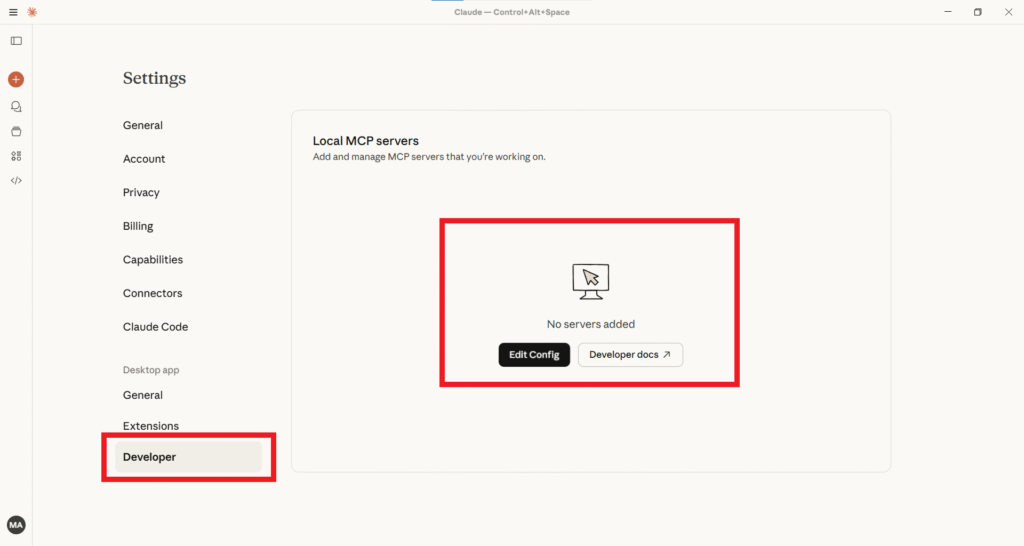
Claude will open a folder. Open a file called:
claude_desktop_config.json
This is where we define external tools.
Paste this into your JSON file:
{
  "mcpServers": {
    "n8n": {
      "command": "npx",
      "args": [
        "-y",
        "mcp-remote",
        "YOUR_N8N_MCP_URL_HERE"
      ]
    }
  }
}
Replace YOUR_N8N_MCP_URL_HERE with the production URL from Step 8.
3 critical rules:
If in doubt, validate at jsonlint.com.
Example with real URL:
{
  "mcpServers": {
    "n8n": {
      "command": "npx",
      "args": [
        "-y",
        "mcp-remote",
        "https://wordvell.app.n8n.cloud/mcp/97efa11e-e122-4a5e-a499-083455cf9cf8"
      ]
    }
  }
}Quit Claude completely
Reopen Claude.
You should now see an n8n tool icon inside the input bar.

If it doesn’t show:
Try one of these:
What happens next:

If it works, you’ve officially connected Claude AI → n8n → WordPress.
Your site is now AI-powered.
And you built it yourself.
Up till now, you’ve seen Claude create posts, update content, and manage WordPress like a polite assistant.
But with n8n’s visual workflow engine, you can push this way further into full-blown multi-tool automations that work across your entire business.

Imagine this.
You type a single command into Claude:
“Create a blog post about sustainable design, generate a cover image, and schedule a social media announcement.”
And boom, Claude triggers an n8n workflow that:
All from one command. No clicking around. No jumping between apps.
How to build this:
Example Workflow Chain:
Claude → n8n MCP → Create WordPress Post → Extract Post Data → Generate Image → Draft Social Media Text → Publish → Slack Notification
If you manage several client sites, MCP becomes a superpower.
You can connect multiple WordPress sites to a single Claude instance using n8n, each with its own workflow.
Setup Strategy:
claude_desktop_config.json:{
"mcpServers": {
"client-a-wordpress": { ... },
"client-b-wordpress": { ... }
}
}“Using client-a-WordPress, create a post about the benefits of solar energy.”
It’s shockingly smooth.
Agencies love this because it lets one content manager operate multiple client sites without ever logging in manually.
Let’s address the elephant in the room: when you connect Claude to WordPress, you’re literally giving an AI the keys to your website.
That sounds scary because it should be. But with the right setup, it’s not just safe… It’s often safer than handing access to a human team member.
Here’s how to do it responsibly.
Most people assume Claude gets full access to their site. Not true.
Here’s the transparent breakdown:
What Claude sees:
Only the data you explicitly request through your MCP commands, such as post titles, content bodies, user roles, etc. Claude doesn’t “browse” your site or scan your database.
What n8n accesses:
Only the specific WordPress REST API endpoints you configure. If you don’t add a “delete user” node, n8n can’t delete users. Simple as that.
Where data is stored:
n8n logs workflow executions (you can disable or limit this). Claude does not store MCP interaction data as per Anthropic’s policy.
(If you want to dive deeper, Anthropic’s privacy docs explain this clearly.)
This transparency alone brings peace of mind to most creators.
Here’s your no-nonsense security checklist:
Pro Security Tip:
Create a dedicated WordPress user just for Claude/n8n with the minimum permissions required. Treat it like a service account, because it is.
If you’re using this setup in a business or client environment, here are a few must-follow rules:
One security consultant told us something that stuck:
“AI doesn’t make your system insecure. Bad configuration does.”
Follow the checklists above, and you’ll be on the safe side of automation.
Even with a clean setup, something might break at some point. Don’t panic.
Here are the five issues faced by most people and the fastest ways to fix them.
Check: JSON syntax in your config file (validate with any online JSON checker).
Check: Node.js is installed through this command in your command line (node --version).
Fix: Restart your entire computer, not just the Claude app.
Check: Your n8n workflow is Active (toggle must be ON).
Check: Your WordPress application password was copied exactly, no trailing spaces.
Fix: In n8n, reopen your WP credentials → click Test to confirm connection.
Reason: You haven’t added the required WordPress action node in your workflow.
Fix: Add the missing operation (Create/Update/Delete/etc), save, and reactivate.
Check: WordPress node settings (correct resource + operation).
Check: n8n execution logs for error messages or failed branches.
Fix: Confirm your WordPress site is publicly accessible (not in maintenance mode or blocked by security plugins).
Reason: Node.js isn’t installed or wasn’t added to PATH.
Fix: Reinstall Node.js and ensure “Add to PATH” is checked during installation.
You’ve officially connected Claude AI to WordPress through n8n’s MCP server.
That means your AI assistant can now manage posts, users, products, and workflows without you ever opening the WP dashboard.
Now the fun part begins.
Next Steps
A Final Thought
The real win isn’t just saving time.
It’s redefining how you interact with your website.
What once took 20 clicks and three tabs now takes one clear sentence.
If you build something cool or hit a weird edge case, drop it in the comments. We’d love to see how you’re using AI + MCP inside your WordPress workflow.
Want more guides like this?
Subscribe to our newsletter for deep WordPress tutorials, AI/MCP automation strategies, useful resources, and the latest WordPress news.