Discover the
Modern
WordPress with WordVell
This is a practical and in-depth guide on WordPress Studio, which is an official local development tool by WordPress.com.
If you are a WordPress designer or developer, then this matters to you because WordPress Studio immediately raises important questions:
Is WordPress Studio better than XAMPP, LocalWP, or Docker for local development? And should you switch your local workflow to it?
In this guide, we will address these questions by taking a hands-on, real-world look at WordPress Studio (Studio by WordPress.com).
We will examine why it exists, how it actually works, what its core features are, how to set it up, where it excels, where it falls short compared to its competitors, and, most importantly, when using it is a smart decision versus a costly mistake.
This is not a launch recap or feature checklist.
It is a grounded assessment based on real usage, architectural constraints, and long-term implications, allowing you to make an informed decision with clarity about whether WordPress Studio is a good fit for your workflow.
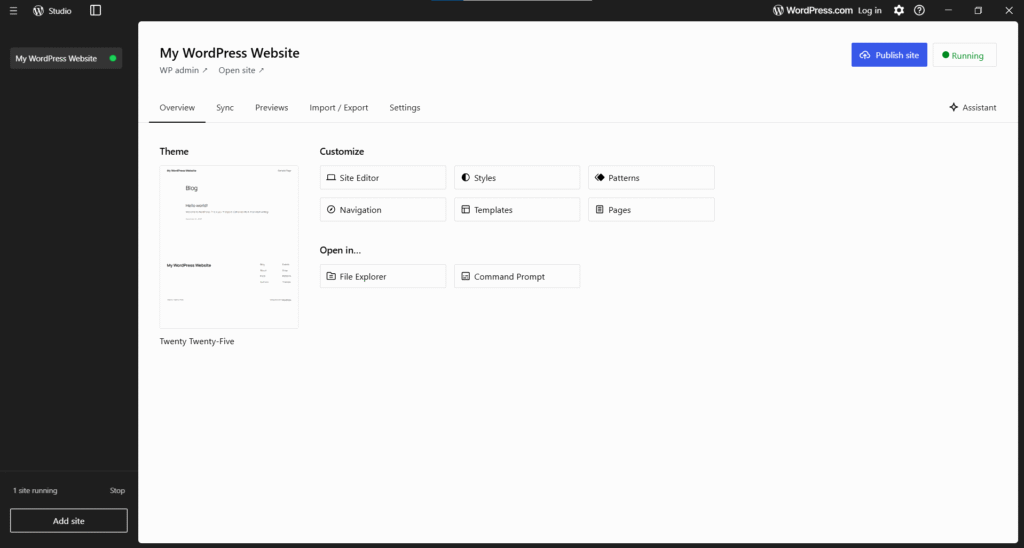
WordPress Studio is an open-source tool developed by WordPress for local development of WordPress sites, themes, and plugins before going live.
WordPress Studio exists because local WordPress development was fragmented before. Developers had to juggle between LocalWP, XAMPP, Docker, and cloud playgrounds with no official solution.
Studio is WordPress.com’s attempt to reclaim that ground because hosts like Hostinger and Cloudways are also tightening their own tooling ecosystems.
As Matt Mullenweg noted at launch, Studio is about “lowering the barrier to experimenting with WordPress.”
That timing matters. Gutenberg is mature, WordPress Playground is viable, and finally, Studio makes portable, zero-config environments realistic.
WordPress Studio is built on WordPress Playground, using SQLite instead of MySQL and running PHP via Web Assembly (WASM).
Studio also removes traditional servers like Apche, Niginix or MySQL entirely for execution of PHP code; instead, they use Web Assembly for it.
So, due to this, setup becomes instant, portability improves, and sharing becomes trivial.
SQLite is a self-contained, file-based database engine that is faster for local setup and testing and performs well for lightweight content, themes, and block-based builds.
But it breaks down with complex queries, large datasets, and plugins designed around MySQL behavior.
If your production site relies on advanced joins, stored procedures, or heavy WooCommerce logic, incompatibilities appear late. That is not a studio bug; it is an architectural reality.
WordPress Studio is effective and highly useful for:
In these contexts, Studio reduces overhead without introducing meaningful risk.
Studio creates problems when architectural fidelity matters:
The cost is not obvious upfront until assumptions break, and time is lost rebuilding elsewhere.
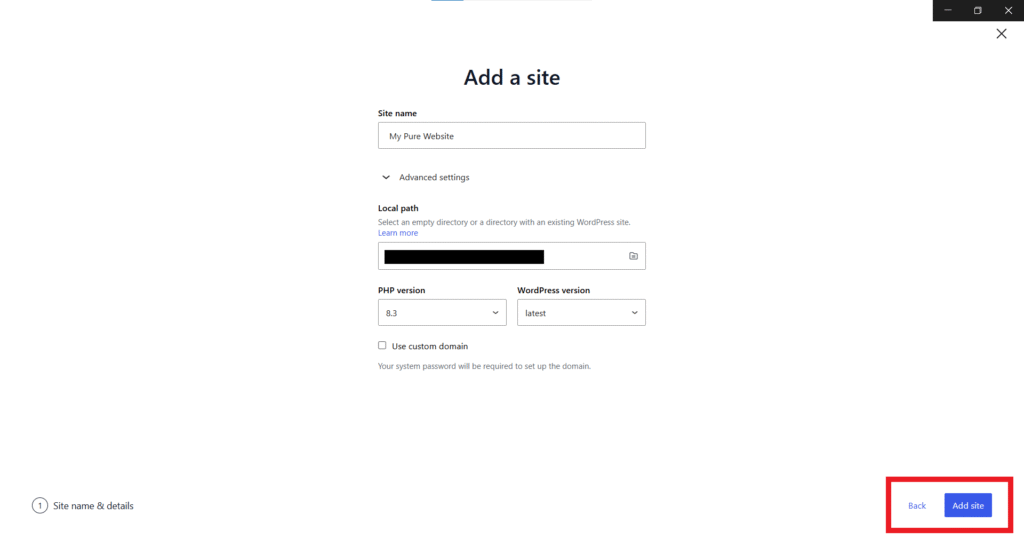
One-click site creation means Studio spins up a full WordPress install, including PHP, WordPress core, SQLite database, and HTTPS without manual configuration.
There is no server stack to install and no environment tuning upfront. Just add your site name and click on “Add Site.” You are ready to go.
What it saves:
For freelancers, managing multiple projects can compound this into real savings.
Studio can be integrated with your favourite code editor, and you can also open a terminal directly from the app.
Useful for:
In practice, the editor handles multiple tasks well from this terminal during development. You can still rely on VS Code and external Git and terminal tools.
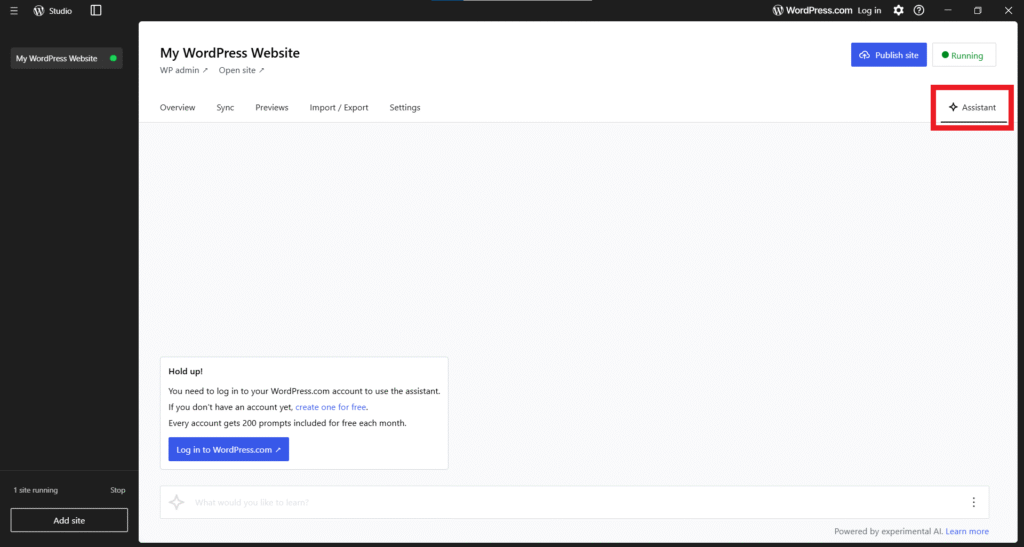
The AI assistant is embedded into Studio to help with WordPress-related tasks. It can generate snippets, explain errors, and assist with basic scaffolding.
Where it adds value:
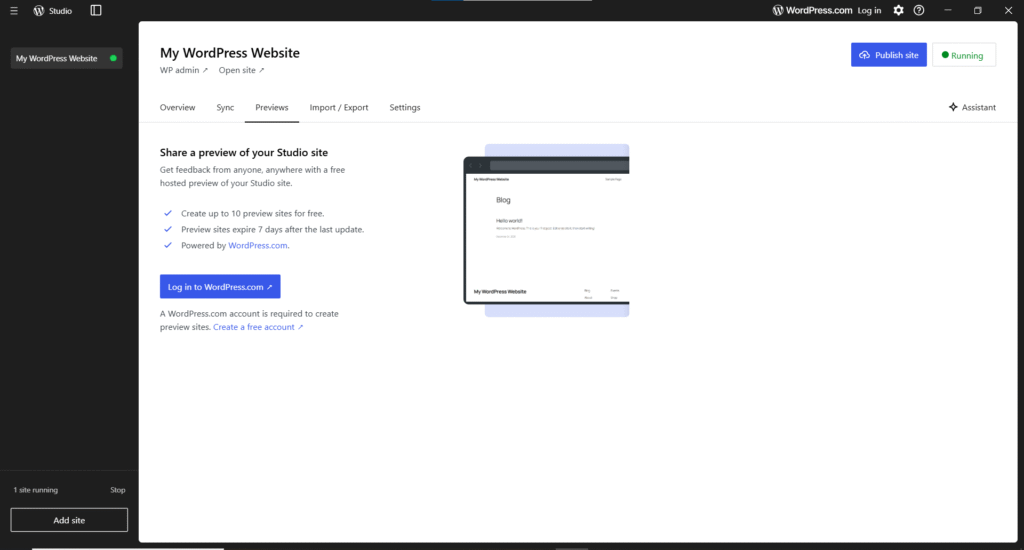
The Preview and Share feature publishes your local site to a temporary WordPress.com URL. Clients can view it without tunnels or extra setup.
Best for:
This is a wonderful feature for speed and simplicity, and also allows you to inform your stakeholders.
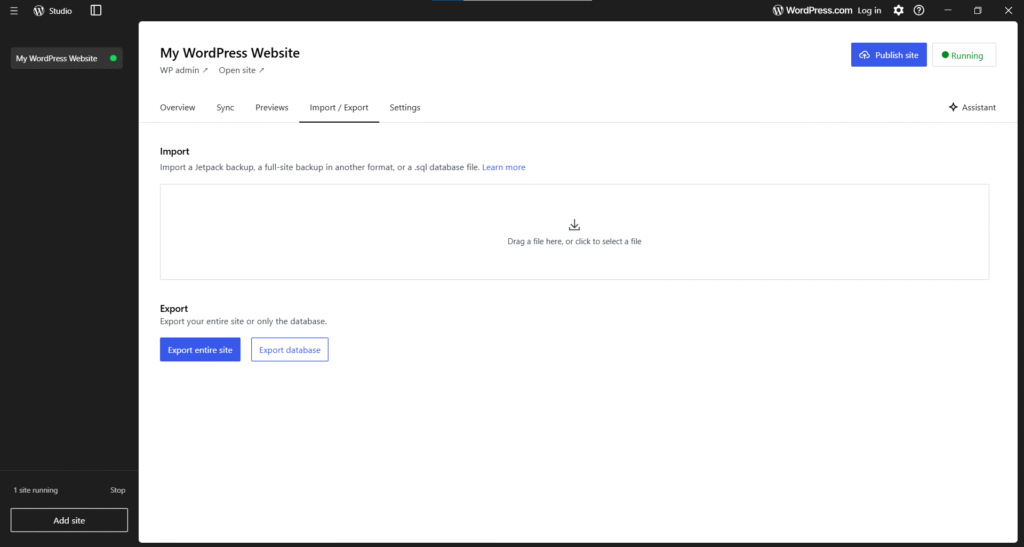
Studio supports importing WordPress XML files, plugins via ZIP, and limited SQL workflows. Exporting focuses on content, not full environment parity.
What works:
You can import/export databases using WordPress Studio to get started from where you left off.
Studio offers offline development by bundling everything locally. You can develop and test sites, themes, and plugins without the internet. This really helps in speeding up the design and development.
Even though you will need an internet connection to install themes, and plugin other content that needs to be downloaded from the internet.
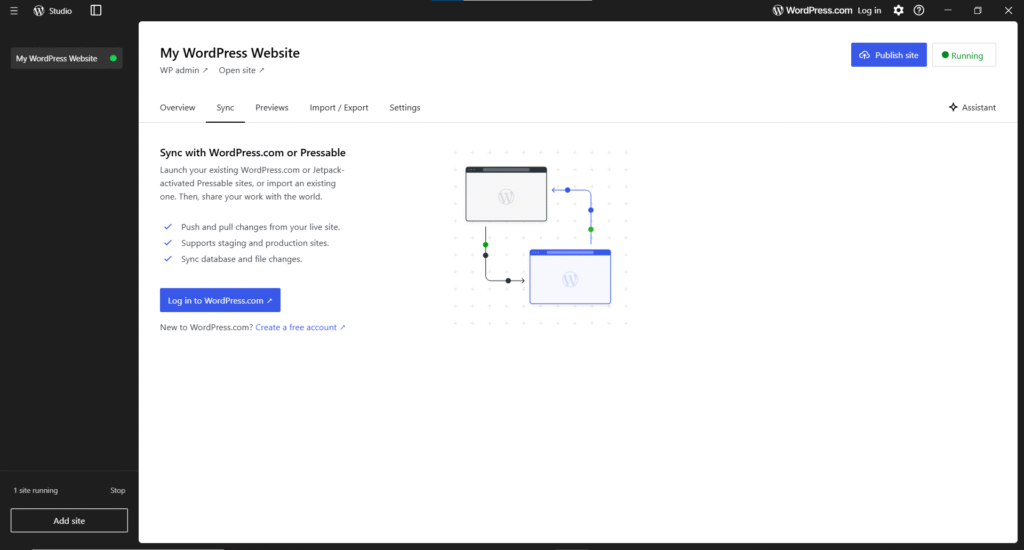
Studio Sync allows you to sync local sites with your live sites on WordPress.com. It brings ease in development and also simplifies collaboration of your WordPress sites with your stakeholders.
Helps with:
Sync is not Git. It is a convenience layer tied to the WordPress.com ecosystem, which is highly useful.
This section focuses on how you can install and use WordPress Studio.
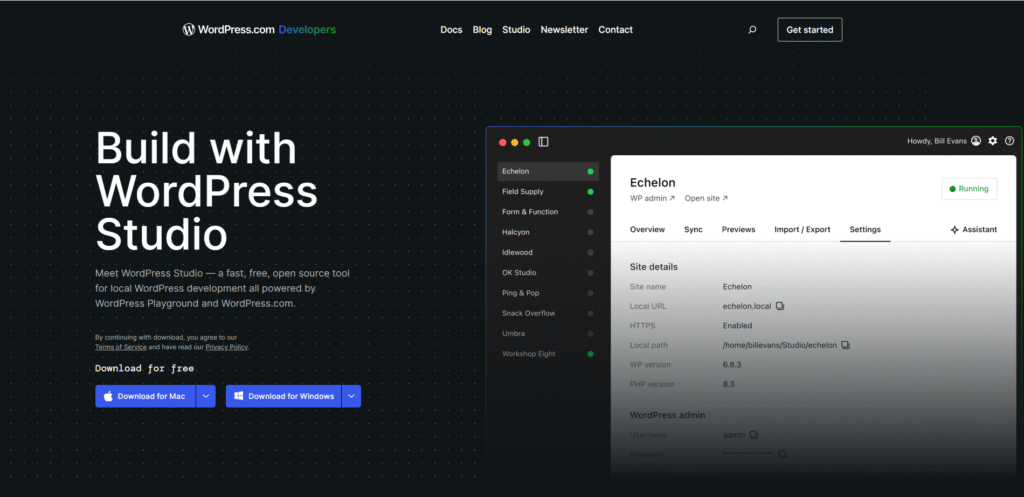
WordPress Studio is a desktop application, not a server stack. You can download from the WordPress Developers’ official site.
Hover over the download button. Choose your system and click on it; it will download the installer for you.
Behind the loading screen, Studio initializes PHP WASM, SQLite, and a WordPress Playground instance. There is no visible server configuration step, which feels fast.
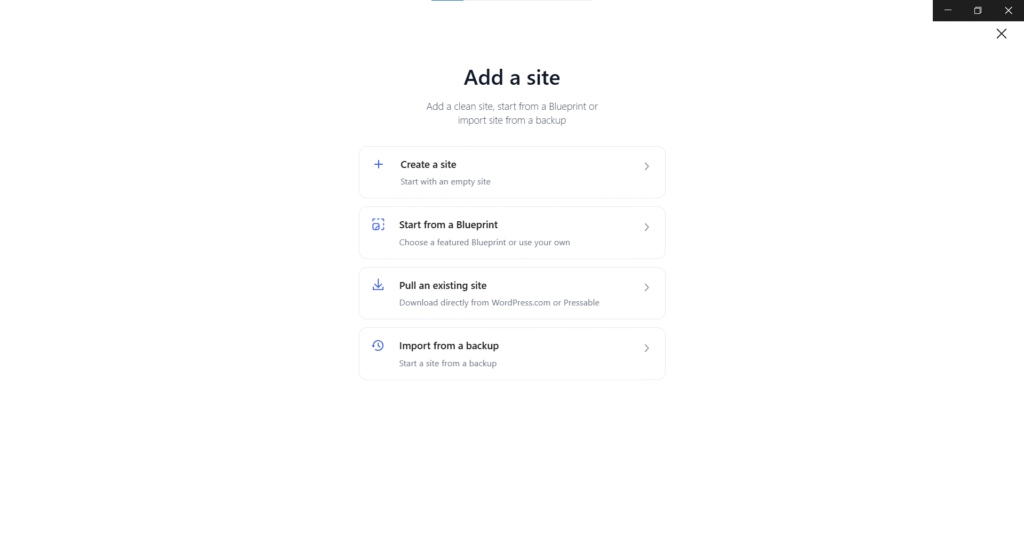
There are five major tabs you will see in the site control panel. Let’s get an overview of what you can do with them:
The Overview tab is your control center. From where you can open:
It is used to launch your site on WordPress.com, which you can share it to world.
With this, you can:
But you need to connect your WordPress.com account for it
This tab is used to import or export complete sites and databases.
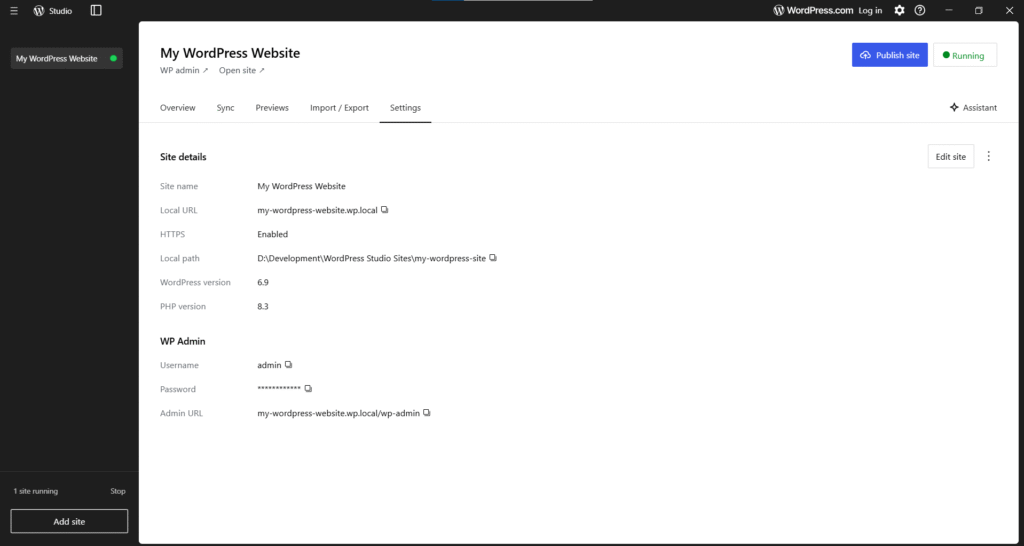
The Settings Tab allows you to configure essential parts of your site:
Most comparisons stop at feature grids. That is not how real developers choose tools.
What actually matters is context: your skill level, your workflow, the features, and advanced implementation.
This section breaks down WordPress Studio against its closest alternatives based on how people actually use them.
This is the comparison most people care about. Studio and LocalWP solve the same problem, but they assume very different users.
Studio performs best when speed and simplicity outweigh control.
LocalWP is designed for professional development environments.
Across Reddit, Facebook groups, X (Twitter) community, Studio is praised for ease, while LocalWP is favored for serious development work.
Many developers hesitate to leave XAMPP because it is super customizable.
But the problem is that they work at the cost of manual configuration.
Moving from XAMPP to Studio usually takes a few hours, not days. Most of the time is spent adjusting habits rather than solving technical blockers.
If you are still using XAMPP, Studio is a meaningful upgrade. However, if you want both deep configuration and control, then XAMPP remains the better long-term move unless simplicity is your top priority.
Docker remains unmatched for complex, infrastructure-as-code setups.
Studio intentionally avoids this complexity.
If you already use Docker effectively, Studio will not replace it. If Docker feels like overkill, Studio offers a pragmatic middle ground simpler than containers.
WordPress Studio feels frictionless at the start. But the risks often emerge later, often when changing environments, scaling projects, or working under client constraints.
This section surfaces those delayed consequences so you can decide with full awareness.
Studio uses SQLite locally. In production, WordPress sites run on MySQL or MariaDB. That mismatch is not theoretical; it has practical consequences.
Developers have documented real plugin failures where queries passed locally but broke in production. Common issues include:
These problems typically surface after deployment. The result is a site that appeared stable in Studio but throws database errors live. This is a structural risk inherent in the SQLite-to-MySQL workflow.
Consequence: You may finish development confidently, only to spend unplanned time debugging database issues during launch.
Studio abstracts away critical infrastructure knowledge.
For junior developers, this can create a gap between productivity and real-world competence.
Honest trade-off: Studio accelerates output but slows infrastructure literacy.
Studio’s ecosystem is still young, although it is growing rapidly because WordPress already have huge community. On GitHub, contribution is increasing, and also multiple requests have been reported for new features.
At first glance, WordPress Studio looks late. LocalWP, XAMPP, and Docker-based workflows have existed for years.
But WordPress did not delay out of negligence; it waited for the ecosystem to stabilize. Full Site Editing, block-first themes, and WordPress.com–centric workflows simply were not mature enough earlier.
In 2025, the context has changed. Block development is mainstream. Educators need disposable environments. Non-technical stakeholders expect instant previews. Studio aligns with these realities.
The key signals to watch are MySQL parity, deeper WP-CLI control, and clearer governance. If those mature, Studio’s timing will look less late and more deliberate.
WordPress Studio succeeds where many tools overcomplicate things.
Studio represents WordPress’s intent to lower the barrier to entry without abandoning developers entirely.
So, if you are a designer, educator, solo builder, freelancer, or agency, you can use the studio for creating and managing multiple sites, but for more advanced configuration, you might need to switch to alternative tools.
You can follow these Essential Resources to learn and remain updated
Subscribe to Our Newsletter
Subscribe to our weekly newsletter for