Discover the
Modern
WordPress with WordVell

Do you want to learn how to set up Cloudflare with your WordPress site to improve speed and security?
It’s easy that you get stuck or run into roadblocks during DNS Configuration at initial setup or in settings such as SSL, caching, and security optimization.
You need to be precise with these settings, as even a minor error can accidentally cause connection problems, redirect loops, email breakage, or temporary downtime.
But the right connection and configuration enable Cloudflare to sit between your users and server, allowing it to cache content, block malicious traffic, and handle SSL without stressing your origin server. This leads to improved load time, uptime, security, and crawl efficiency simultaneously.
In this guide, we will outline the exact steps we follow to set up Cloudflare with WordPress sites, as well as the checks we use to avoid common failures.
By the end of this guide, you’ll be able to:
Let’s understand Cloudflare first, and then we’ll guide you through the connection steps…

Cloudflare is a global edge network that combines speed (CDN), security, DNS, reliability, and performance optimization services into a single layer between your website users and your server.
Instead of every request hitting your origin server directly, Cloudflare routes traffic through its edge data centers, where it can cache content, filter malicious requests, offer high security, and serve optimized responses closer to the user.
It acts as a smart middle layer that reduces load on your server while improving load speed and blocking spammy traffic before it even reaches your hosting environment.
For WordPress developers, this matters because it secures your WordPress site against DDoS and brute force attacks using multiple security features, such as rate limiting and a WAF (Web Application Firewall).
It also boosts global speed using CDN and APO (Automatic Platform Optimization), and reduces latency due to distributed servers all over the world.
Quick Stat: Cloudflare’s Automatic Platform Optimization (APO) can significantly improve WordPress performance, with reported cases showing up to 300% faster load times.
Before we start, make sure you have these basics in place:
We’ll guide you through the exact steps to connect your domain, configure DNS and SSL correctly, apply performance settings, and integrate Cloudflare with WordPress, all without breaking your site or email.
In this phase, you will create your Cloudflare account, import DNS records, and prepare your domain for a smooth Cloudflare connection.
Start by going to Cloudflare and clicking on the “Sign Up” button.
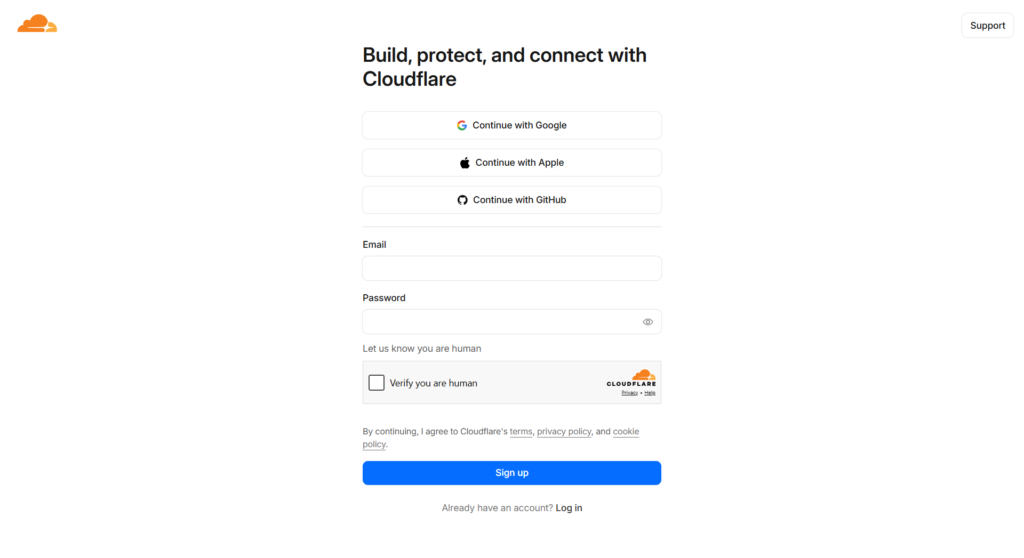
Enter your email and password, complete the reCAPTCHA, and submit the form to create your account.
Before proceeding, verify your email address, as Cloudflare restricts certain actions until verification is complete.
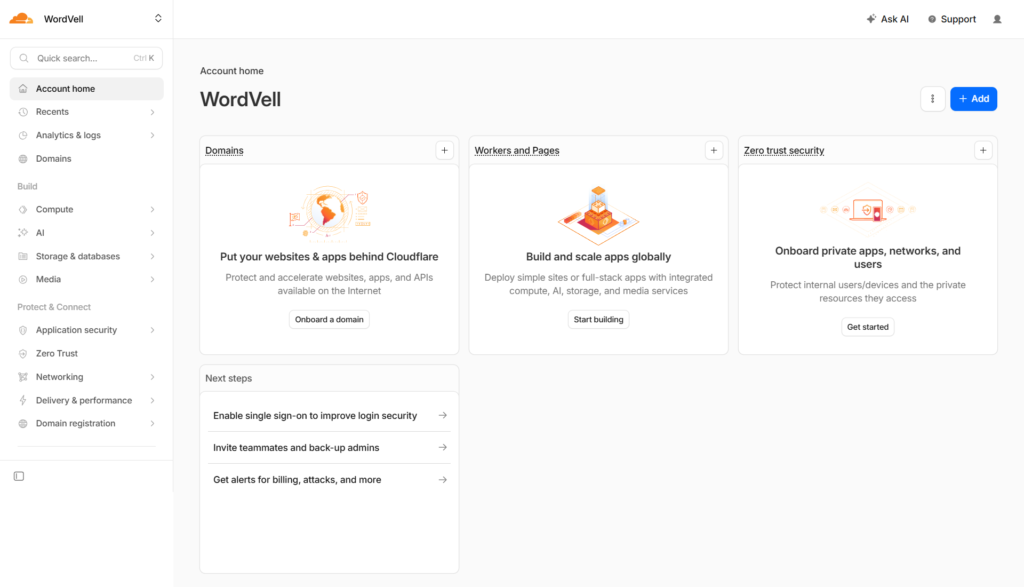
Now, you will see the Cloudflare Configuration Dashboard.
If you prefer a quicker setup, you can also sign up using Google, Apple, or GitHub, which skips manual verification steps.
Once logged in, click on the Add Site button and choose Connect a Domain to begin onboarding your website.
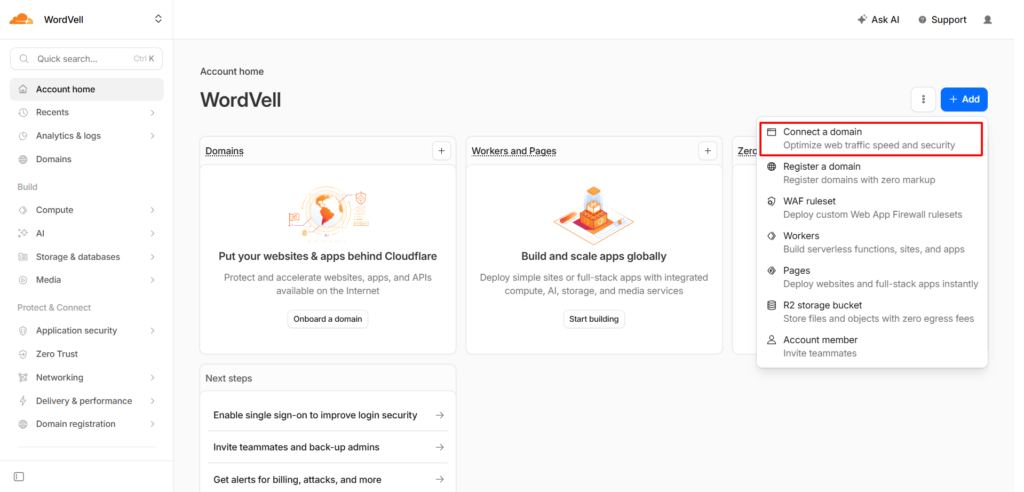
Enter your domain name (for example, wordvell.com), and configure the way you want to fetch or add the DNS of your site.
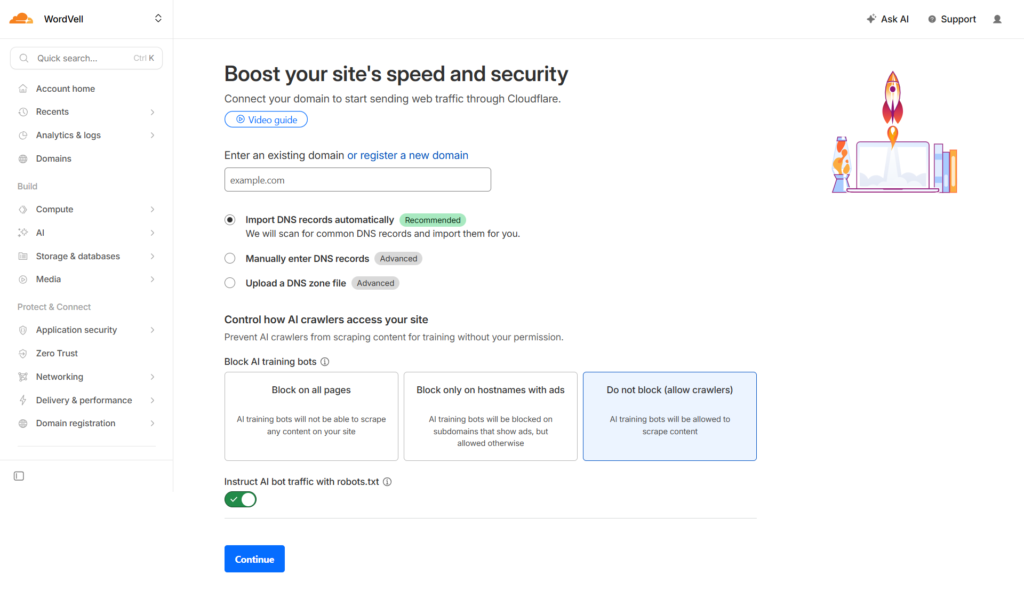
For most WordPress developers, selecting ‘Import DNS automatically’ is the safest and fastest option, as it pulls existing records without requiring manual entry.
If you’re running a more advanced setup, like custom email routing or multiple subdomains, you can manually add DNS records or upload a zone file instead.
At this stage, you’ll also see AI crawler settings.
If you want your site to appear in AI search results and overviews, keep crawlers allowed; otherwise, you can block them either globally or only on ad-related hostnames.
Note: Don’t worry, you can change the AI bots’ settings later.
Once everything looks right, click Continue.
Cloudflare will now ask you to choose a plan based on your needs.
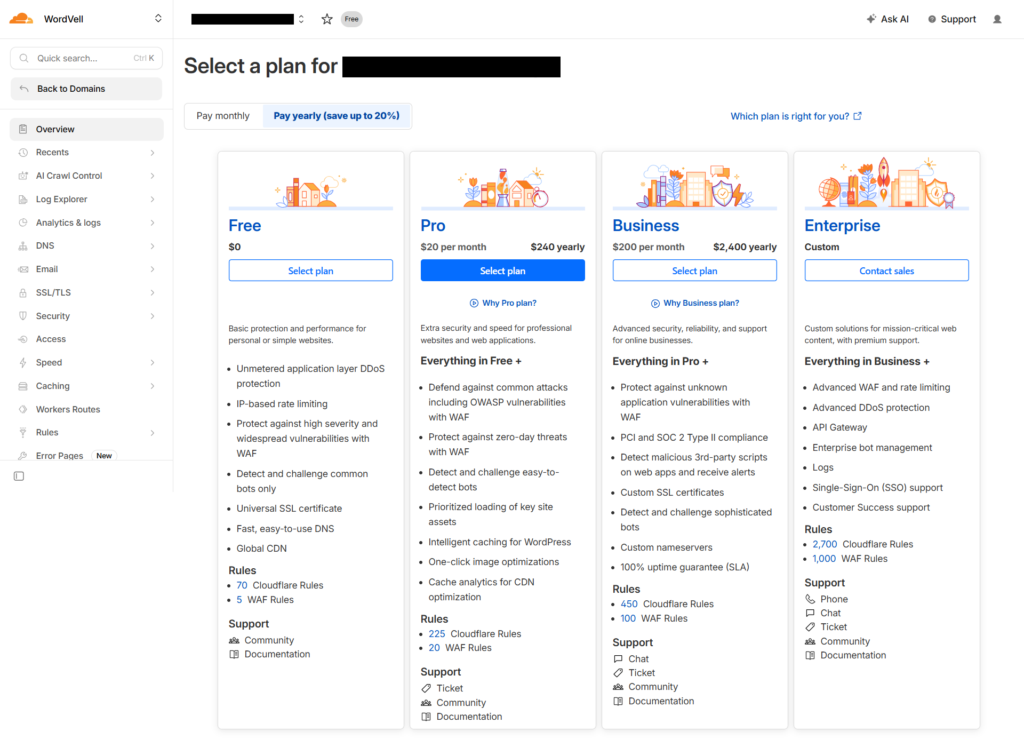
For most WordPress sites, the Free plan is more than sufficient to enable CDN, SSL, and basic security features.
You can always upgrade later if you decide to utilize advanced features, such as APO or additional firewall controls.
Select the Free plan and move forward.
Cloudflare will now scan your domain and display all DNS records in a table.
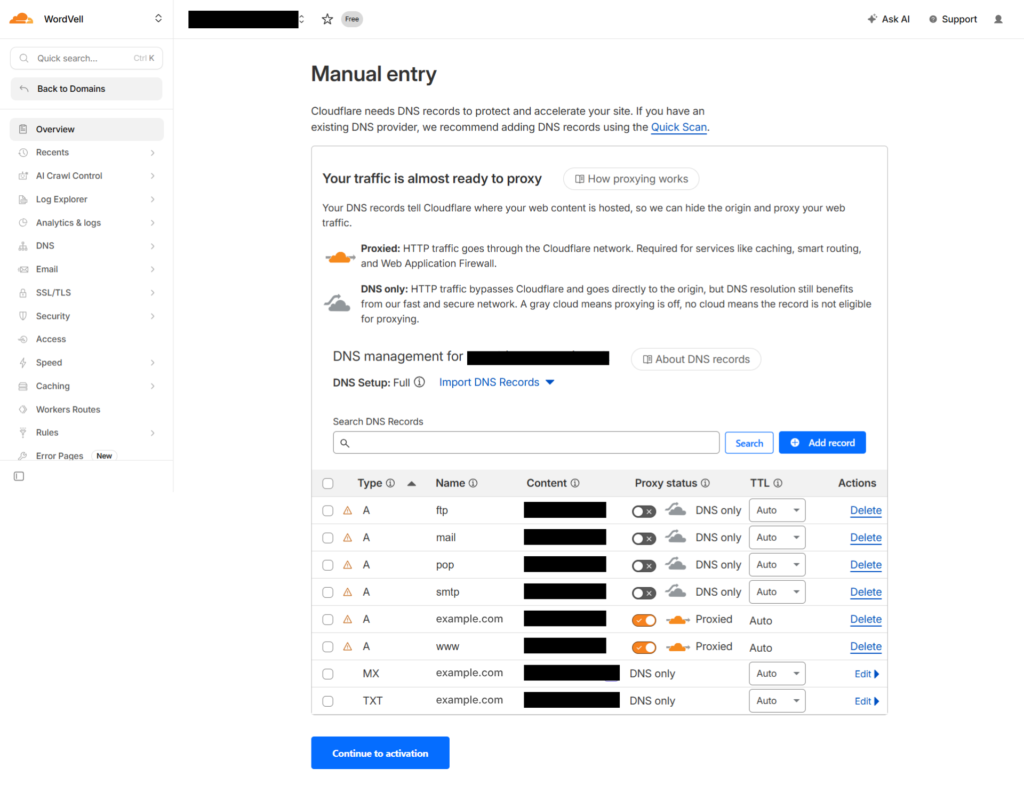
You should take an extra moment on this section because here, in this part, accurate settings are vital for keeping your site and email online. Otherwise, incorrect settings can cause your site or email to malfunction.
Set your main domain and “www” records to Proxied (orange cloud), which enables Cloudflare’s CDN and protection layer.
For services such as email, FTP, SMTP, and POP, switch them to DNS Only (grey cloud) so they bypass Cloudflare and continue to work normally.
MX and TXT records should remain DNS only by default, so don’t change them.
After reviewing, click Continue to Activation.
In the final step of this phase, Cloudflare will assign you two unique nameservers.
These look something like this:
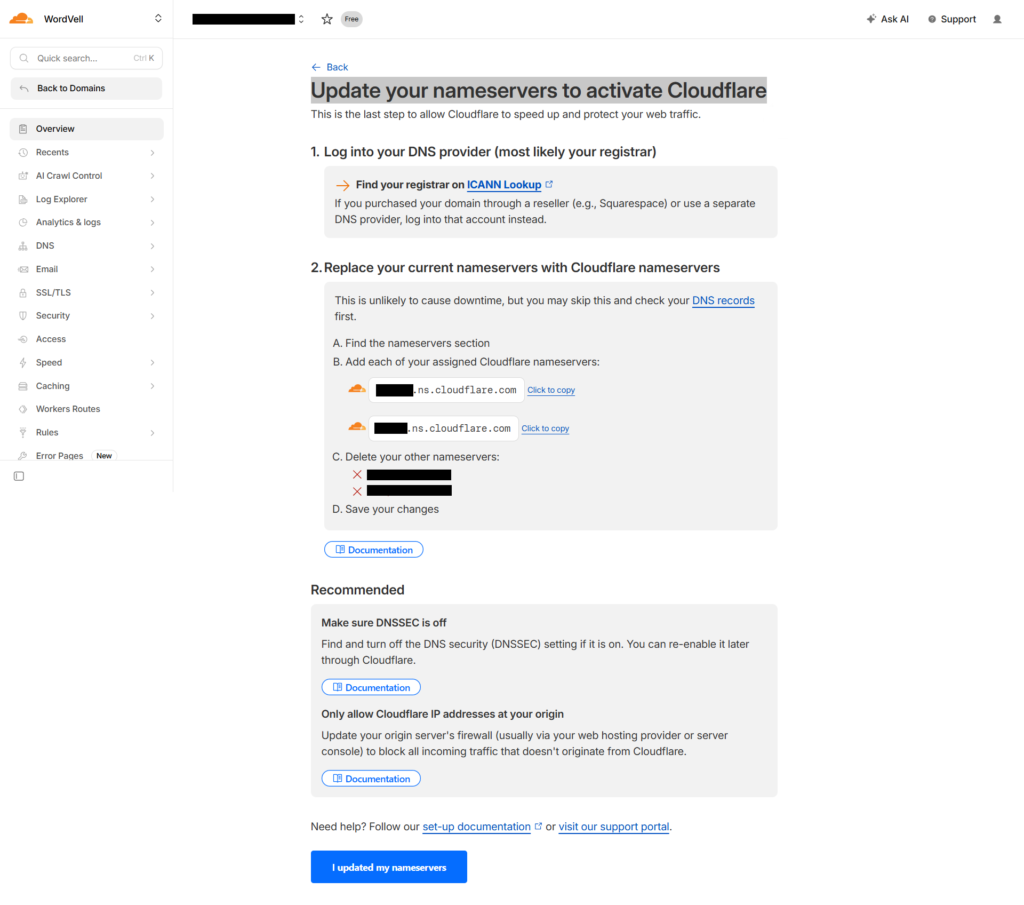
Copy these nameservers carefully, because you’ll need them in the next phase to connect your domain through your registrar.
Now, you will connect your domain to Cloudflare by updating the nameservers in your domain registrar’s dashboard.
Note: Propagation usually takes between 15 minutes and a few hours, but in some cases, it can take up to 24 hours. Don’t worry, your site will remain accessible during this time.
While you wait for the nameservers to update, use this time to configure these settings in the Cloudflare Dashboard to ensure your WordPress site works perfectly with great speed and security.
Go to Cloudflare Dashboard → Domains → your domain, and you’ll land inside the domain management panel where all core settings live.
Let’s configure the essentials we use on real WordPress setups.
Go to SSL/TLS → Overview and set encryption mode to Full (Strict) if your origin already has a valid SSL certificate.
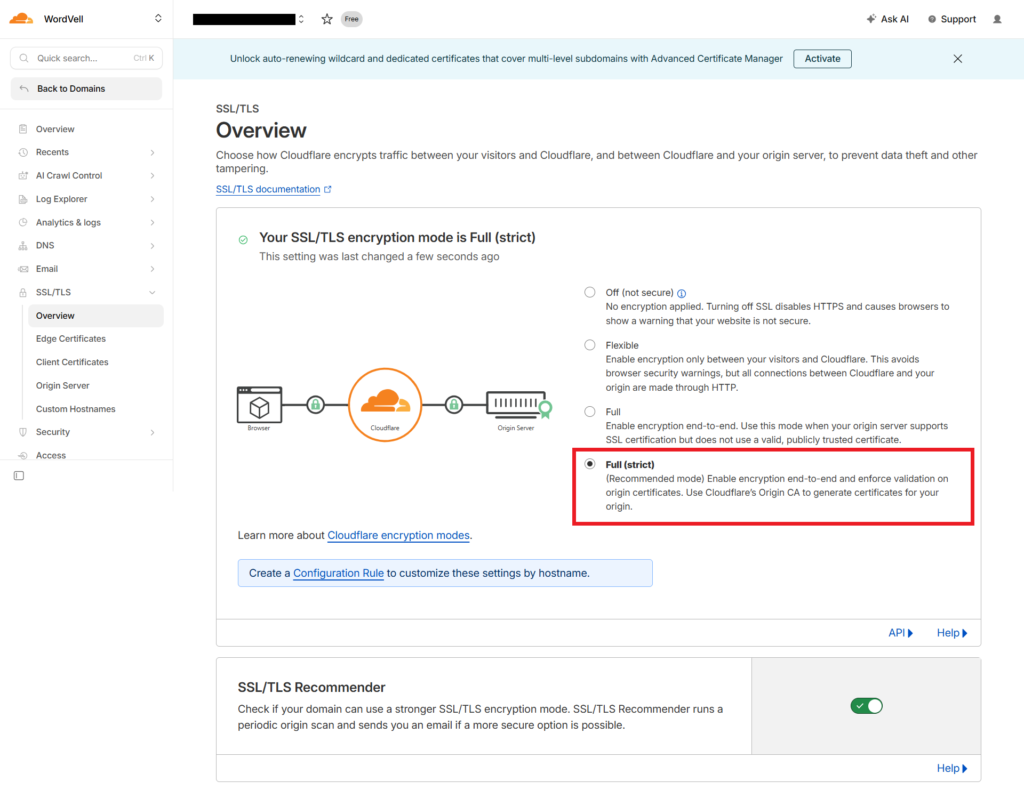
If your server doesn’t have one yet, create it using your host or Cloudflare Origin Certificate, then install it before switching.
Flexible mode might look easier, but it often causes redirect loops in WordPress, especially when HTTPS is already forced at the application level.
For More Information about Full Strict SSL Mode, visit the official Cloudflare docs.
Now go to SSL/TLS → Edge Certificates and enable:
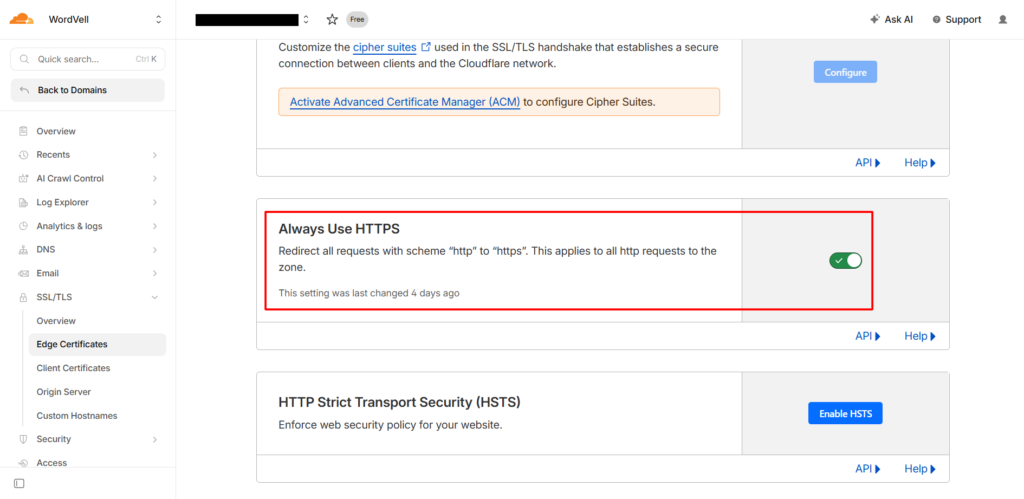
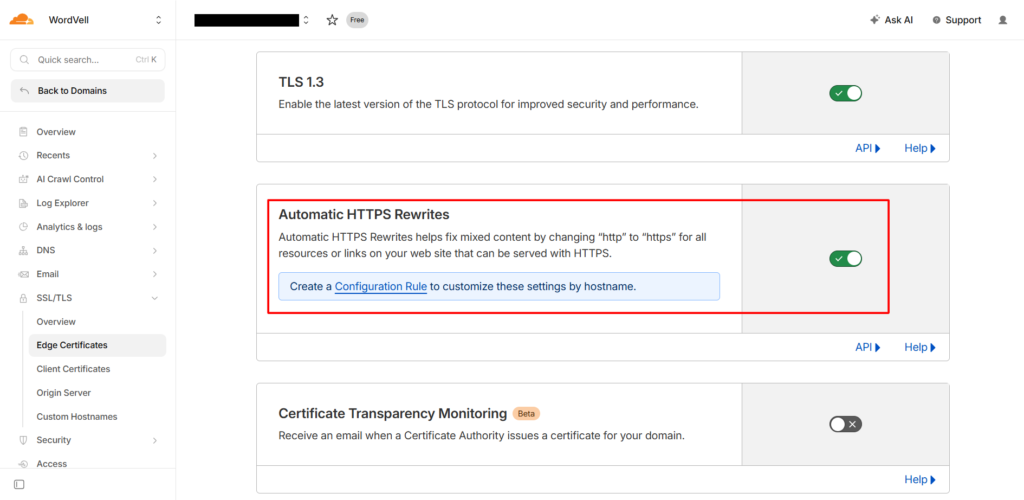
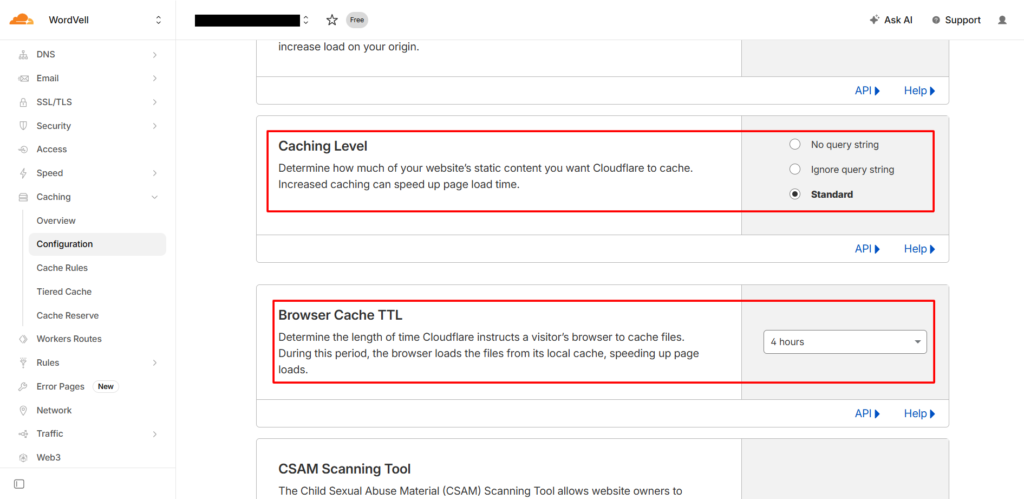
Open the Configuration options in the Caching tab and keep the caching level on Standard.
Set Browser Cache TTL to 4 hours, or you can change it based on how often your content updates.
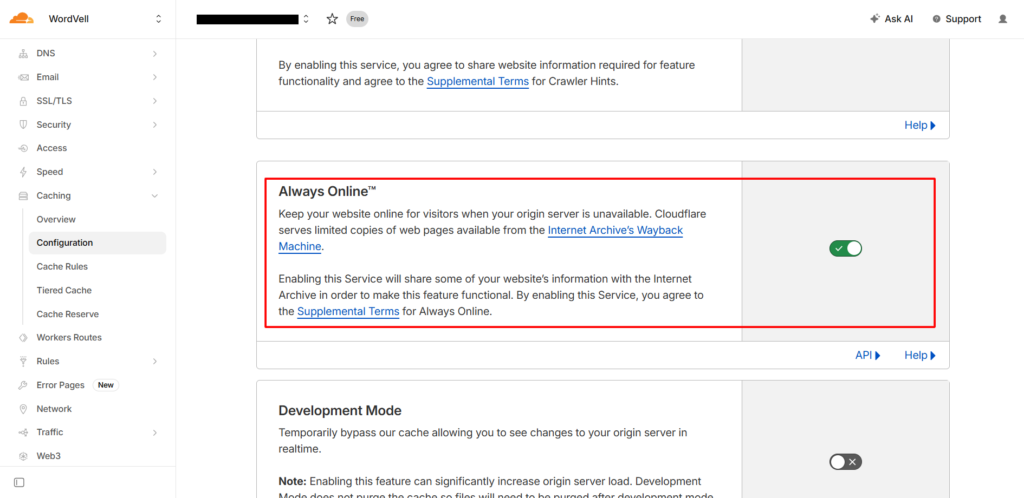
And enable Always Online if you want a fallback when your server goes down.
Go to Speed → Content Optimization and enable Rocket Loader.
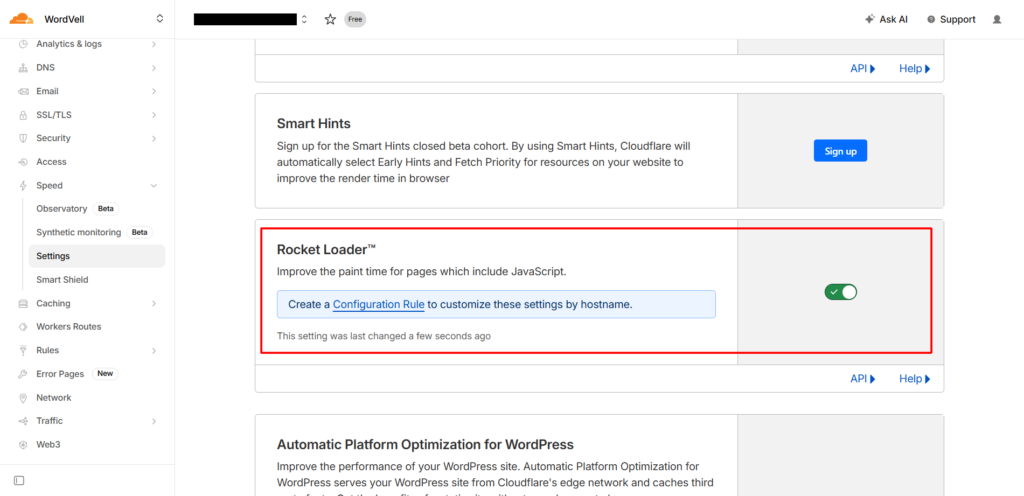
Rocket Loader can break JavaScript-heavy themes or sliders, so test your site after enabling it.
Go to the Overview Tab in Domain Settings and Review bot and AI crawler settings on the right side based on your strategy.
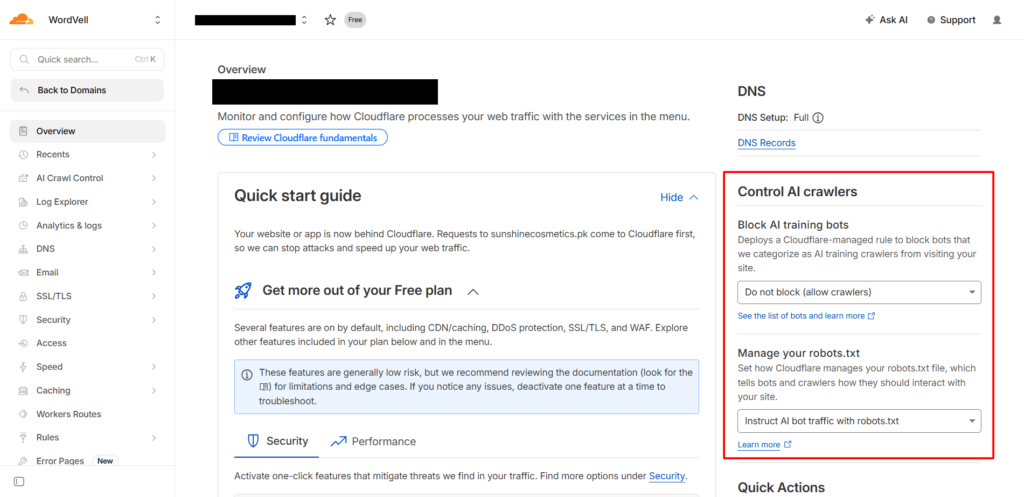
You can also do the advanced bot and AI crawler settings in the Crawlers Option under the AI Crawl Control tab.
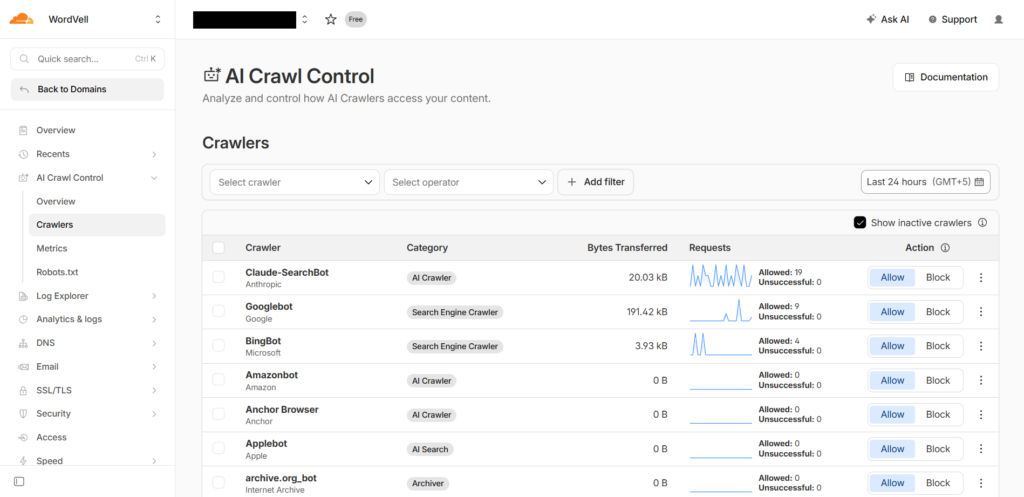
If you want to achieve visibility in AI search and overviews, allow bots and AI crawlers on your site; otherwise, restrict them intentionally.
To create page rules, you need to go to Rules Tab → Page Rules.
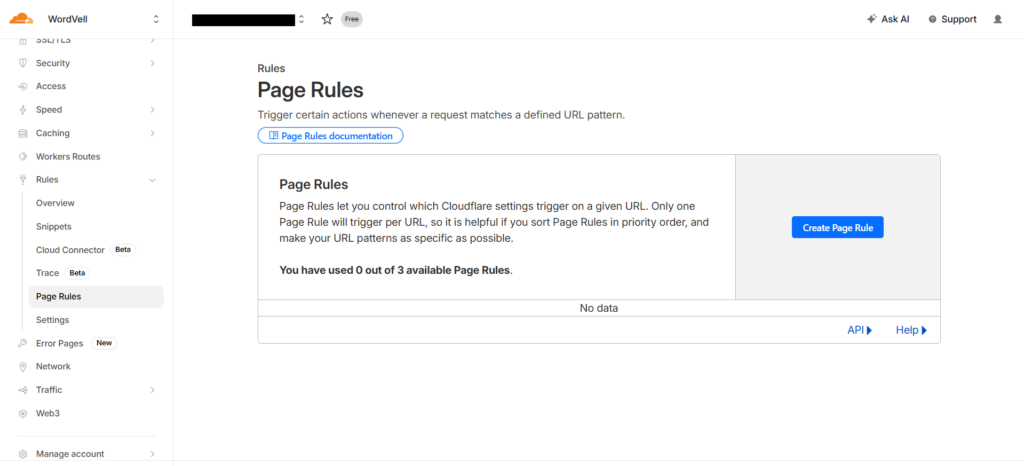
You can create these three essential rules:
For deeper Security, Speed, Cache, and other advanced configurations, follow the Cloudflare documentation.
Once you’ve updated nameservers, you should take a moment to double-check that Cloudflare is fully active and routing your traffic. For verification, you can
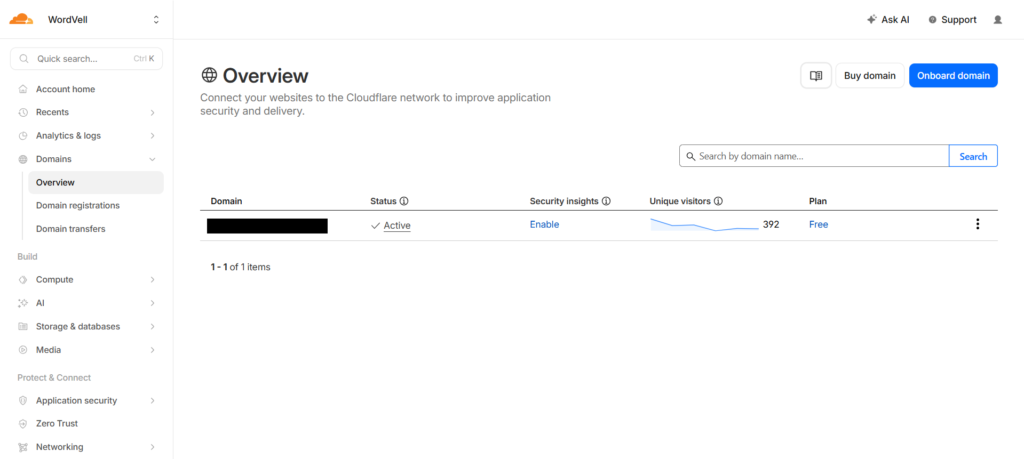
You can also run a quick browser-level test to verify your Cloudflare connection. Open your site, press F12, go to the Network tab, and reload the page.
Click your domain and check the response headers for server: cloudflare.
If you see it, traffic is successfully routing through Cloudflare.
This verification method can be used to confirm the active Cloudflare proxy status.
At this point, your domain is connected.
Now, we will help you connect the Cloudflare plugin to your WordPress site, allowing Cloudflare to optimize the performance of your WordPress site.
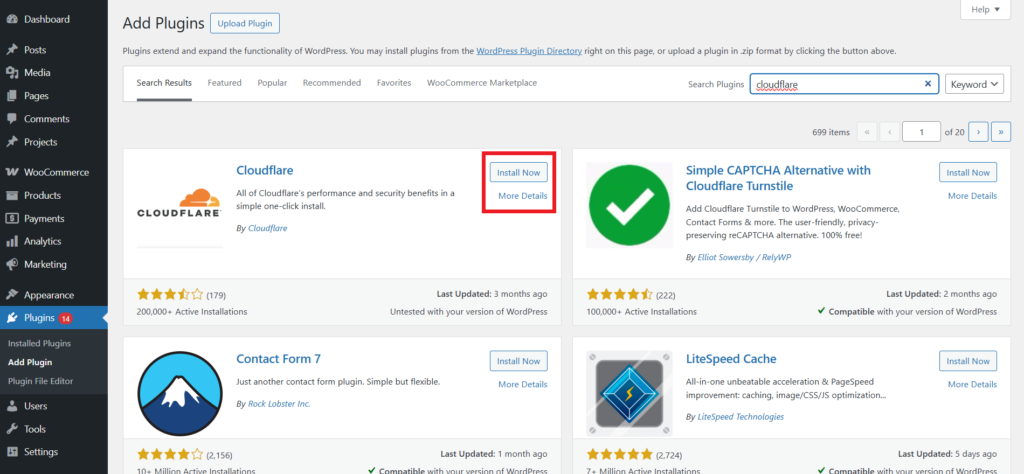
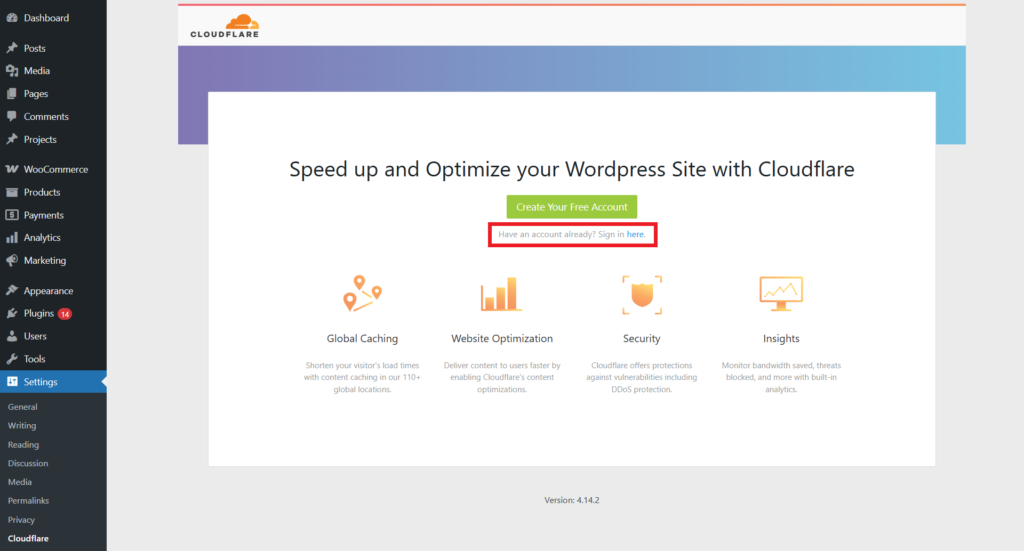
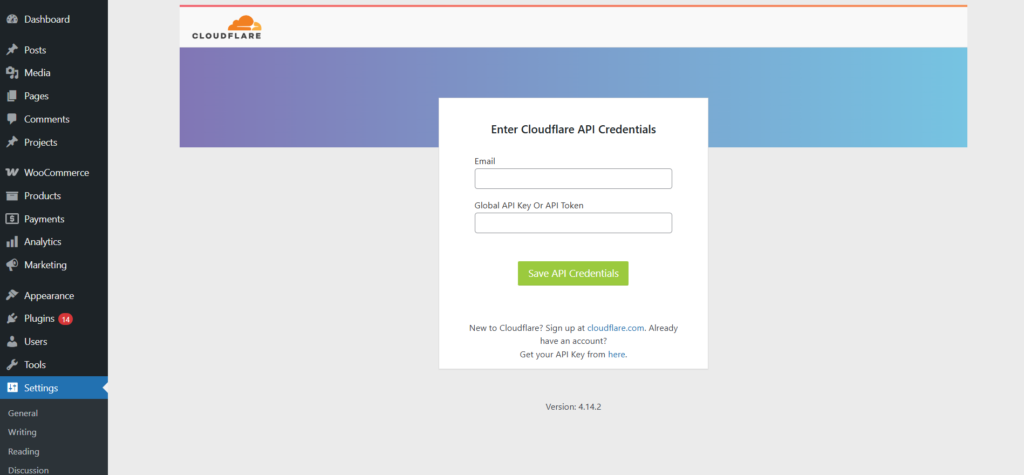
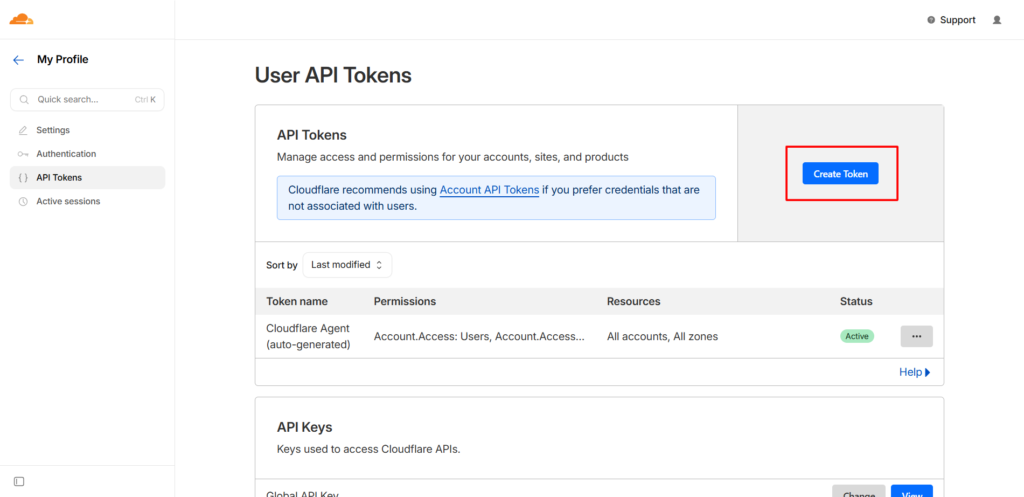
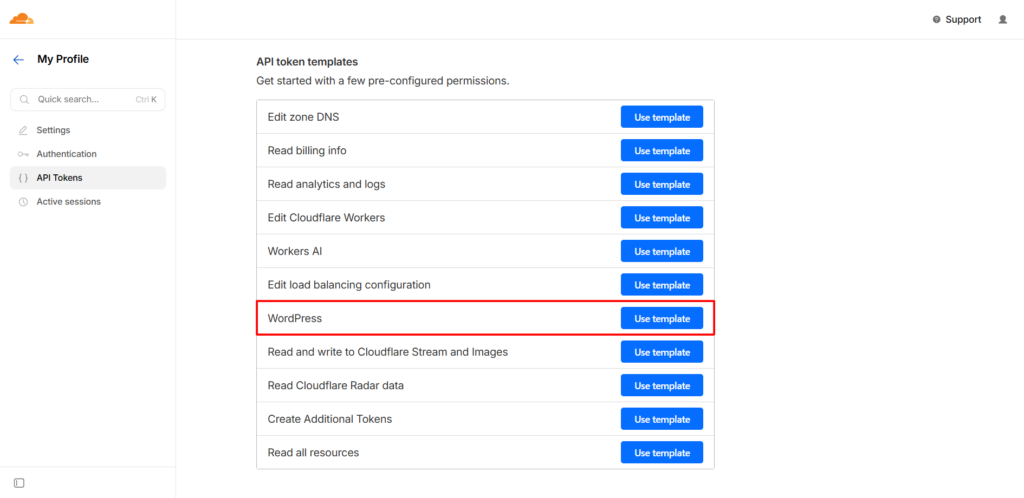
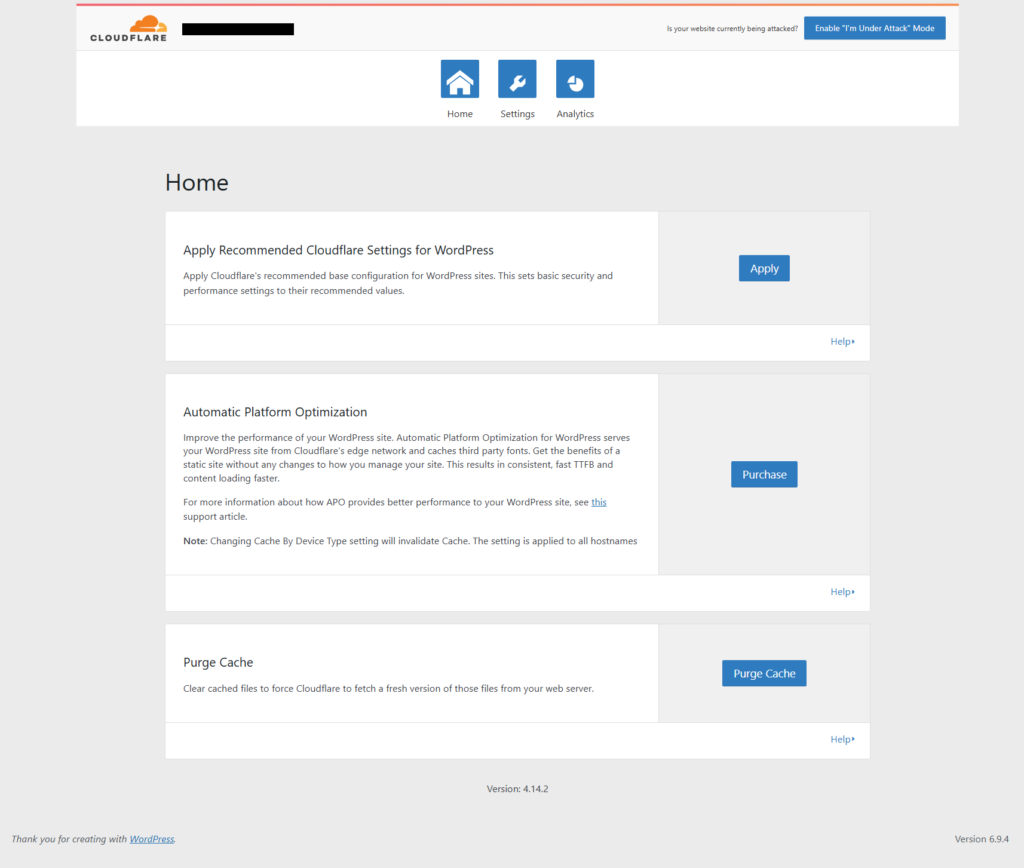
Even after the site is live, it’s worth monitoring it for a bit to catch any configuration issues that might pop up. To prevent this, you can:
Even with a clean setup, a few issues can still appear, and most of them come from small configuration mismatches.
If you face a “too many redirects” error, it usually means your SSL mode is set to Flexible while your server or WordPress is already forcing HTTPS. Switch the SSL mode to Full (Strict) after installing a valid SSL certificate on your origin, and the loop will stop.
If your email suddenly stops working, check your DNS records first. This happens when MX or mail-related records are set to proxied (orange cloud). Change them to DNS Only (grey cloud) so email traffic bypasses Cloudflare.
If your site layout breaks or menus stop working, Rocket Loader is likely interfering with JavaScript. Disable Rocket Loader first, then test it again.
If the cache is not clearing after updates, the plugin might not be properly connected. Recheck your API token, manually purge cache, and confirm using Cloudflare cache headers.
If nameserver updates take longer than expected, verify entries at your registrar and wait, as propagation can take up to 24–48 hours in some cases.
At this point, you’ve connected your site with Cloudflare. You’ve set up a system that improves your site’s speed, adds a security layer to it, and reduces load on your server without complicating your workflow.
We began with setting up the Cloudflare account, then moved on to DNS and name server connection, configured SSL and performance settings, verified the connection, and finally connected everything to WordPress using the official plugin.
Following this process will help you to prevent typical headaches like SSL conflicts, caching stagnation, and email breakage.
We regularly share practical and tested solutions like this, including AI automation strategies, and real use cases for WordPress developers and agencies.
If that’s your space, subscribe to our newsletter and stay updated.
Cloudflare won’t break your email if you keep MX and related records set to DNS Only, so they bypass the proxy.
You don’t need a paid plan to get solid protection, since the free plan already includes SSL, CDN, and basic WAF rules, though advanced controls and APO come at a cost.
Speed improvements usually start as soon as Cloudflare begins serving traffic, especially with caching enabled, but full impact depends on DNS propagation, which can take up to 24–48 hours in some cases.