Discover the
Modern
WordPress with WordVell
Before AI, only humans interacted with WordPress. A user logs in, clicks buttons, writes content, fulfills their tasks, and logs out.
But now, the entire interaction model shifts due to the introduction of AI automation into that same environment.
Many tools like n8n, OttoKit, Open Claw, Make, MCP servers, and AI-powered plugins allow AI Models and agents to establish a two-way connection with your site, which allows AI to interact with your APIs, Database, workflows, and platforms as per your commands.
So now, you’re dealing with the AI agents and LLMs that can read, write, trigger workflows, take actions, and hit your WordPress REST APIs hundreds of times per minute without friction through this connection.
If this connection and integration are compromised due to its weak security or unmanaged access, then this can cause huge damage to your site in seconds.
Besides its benefits, AI integrations can pose a serious security risk. Patch stack reported 7,966 new WordPress vulnerabilities, marking a 34% increase compared to the previous year.
What’s more concerning is how quickly these vulnerabilities are now discovered and exploited, largely due to AI-assisted scanning and automated attack tooling.
So, we will help to minimize this risk. You’ll go through 11 practical security best practices that you can directly implement to secure WordPress for AI automation.
Each one is structured with a clear explanation and practical solutions so you can apply it to your WordPress site.
Before we move forward, it’s worth grounding this that these practices are based on our own hands-on experience implementing AI integrations with WordPress sites.
Let’s get into the best practices that protect your site from AI automation.
These are the best practices we use in our own WordPress and AI workflows.
We’ve structured them from foundational controls like authentication and access to operational layers like testing and monitoring.
Each section includes a Practical Solutions block where you’ll find the solutions to apply these practices directly to your setup.
Strong authentication means verifying that only legitimate users and your permissioned AI agents can access your WordPress system.
In your WordPress AI workflow, your automation (Make, n8n, or a custom script) tools or MCP servers access WordPress through passing the authentication of APIs and if that access is weak, attackers don’t need to exploit anything; they just log in.
This directly addresses the most common breach method in WordPress through stolen or guessable credentials, which is also called a brute force attack.
In 2023, the Wordfence Threat Intelligence team observed brute-force attacks targeting over 900,000 WordPress sites in a single week, focusing on login endpoints like wp-login.php.
Now add AI-powered credential attack into the mix, and the speed of these attacks increases significantly.
So, when AI agents connect using your username and Application Passwords, they inherit the role of the assigned user.
If that role is Admin, a single compromised credential can take over your entire site.
Also, automation platforms store credentials internally. If those accounts lack MFA, your risk extends.
It will hit your SEO, brand trust, and can even trigger compliance risks.
You should create a dedicated WordPress user for your AI agent with the Author or Editor role and generate Application Passwords for this role, and use only those credentials in your automation tool.

You can go to Users → Profile → Application Passwords → Click on “Generate” to create Application passwords.
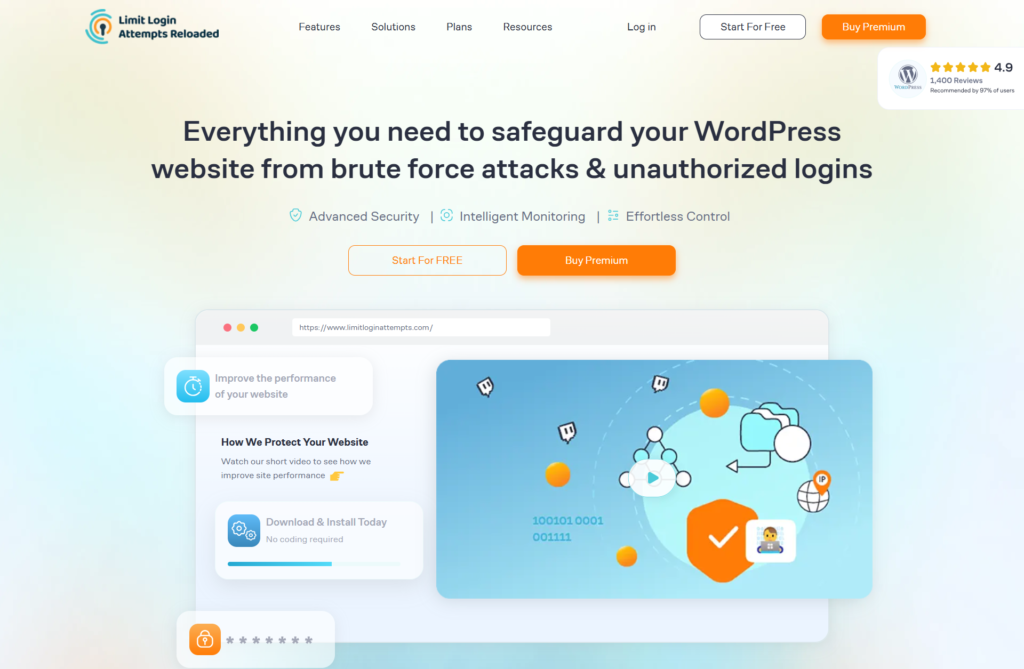
You can install the Limit Login Attempts Reloaded Plugin to protect from brute force attacks and unauthorized logins.
You can also use login security options in the Wordfence security plugin.
You should use the WP 2FA plugin for WordPress and also setup multi-factor authentication for your AI automations tools as well.
Expert Tip: Never connect automation tools using your personal admin account. Create a separate and dedicated account so that it is isolated, minimal, and easy to revoke.
Zero-trust means never assuming a request is safe, even if it comes from your own automation. Every AI agent must prove it is allowed to perform that exact action.
In WordPress, this means managing the users and AI agents’ roles. If your AI agent only publishes blog posts, it should only have permissions for creating and publishing posts, not to create and manage users, plugins, settings, or sensitive data.
This solves privilege escalation and lateral movement. In simple terms, if one account gets hacked, the attacker should not be able to roam across your whole site.
Controlling access is highly important because OWASP’s API Security Top 10 highlights that Broken Object Level Authorization is the #1 API risk. That usually happens when accounts can access resources beyond what they should.
Now imagine an AI agent meant to manage content also has access to user-management endpoints. A prompt injection attack could manipulate the workflow into creating a hidden admin account.
Once that happens, your WordPress site can be fully compromised.
You should use a dedicated WordPress user for each automation. Assign the minimum role needed.
If you want your AI model to only write drafts, use a Contributor role. If it publishes posts, use Author. Don’t hand out more access than the task requires. Avoid Admin unless absolutely necessary.
Warning: Never assign Administrator to an AI agent.
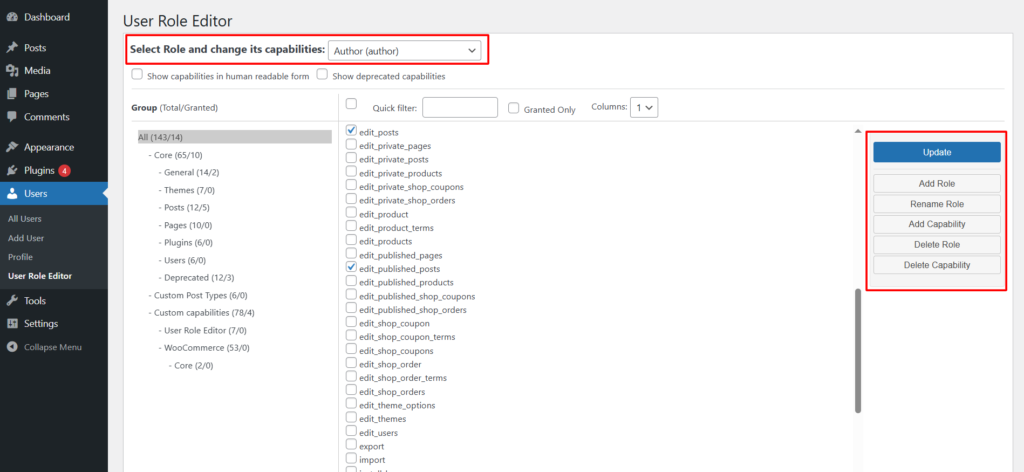
You can use User Role Editor plugin to remove dangerous capabilities like edit_users, manage_options, and install_plugins for the user accounts you are using for the AI agents.
And you can also build a custom role for AI using this plugin and assign only those capabilities that you want AI to control and automate.
If you are using tools like n8n, OttoKit, and other integration platforms that list all the capabilities and permissions that you want AI to control and manage.

Many developers enable everything and never revisit the settings. You should only enable those that are absolutely necessary to be allowed to AI. Other capabilities must be turned off.
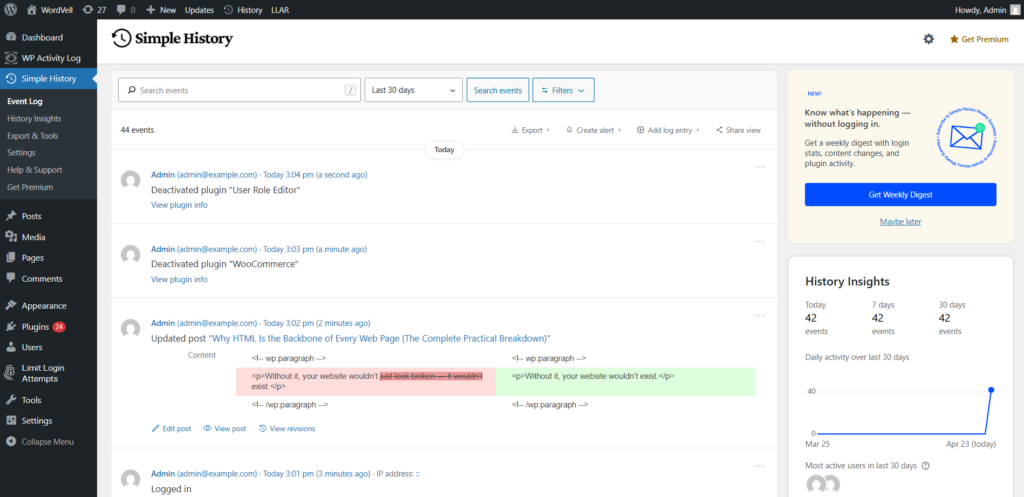
You can install WP Activity Log or Simple History WordPress plugins to track logins, role changes, failed attempts, API actions, and content edits.
Keeping environment clean and minimal exposure means removing every plugin, theme, script, or leftover file on your website, which can become an entry point if it is not actively needed. If it exists, it can be scanned and exploited.
This becomes more important with AI automation because developers often test multiple plugins, connectors, and chatbot tools during setup, then forget to remove them later.
Keeping the WordPress environment clean is vital because Patchstack’s report found that 91% of WordPress vulnerabilities came from plugins rather than WordPress core.
We’ve seen that people test three plugins, choose one, and leave the other two installed.
The result can be severe, such as injected spam pages, exposed customer data, a security breach, or a Google warning that your site may be hacked. This might cause the traffic to disappear overnight.
AI projects naturally involve experimentation. You might test content generators, automation bridges, code snippet tools, prompt managers, or chatbot plugins before settling on one stack. That testing phase often leaves digital debris behind.
You should delete unused plugins completely because only deactivation is not enough. For this, you can go to the Plugins Page and delete the inactive plugins. You can also use WP-CLI commands to delete unused plugins.
You should turn on auto-updates for WordPress Core by going to Dashboard → Updates.
For plugins and themes, you can do it from Plugins and Apperance page respectively.
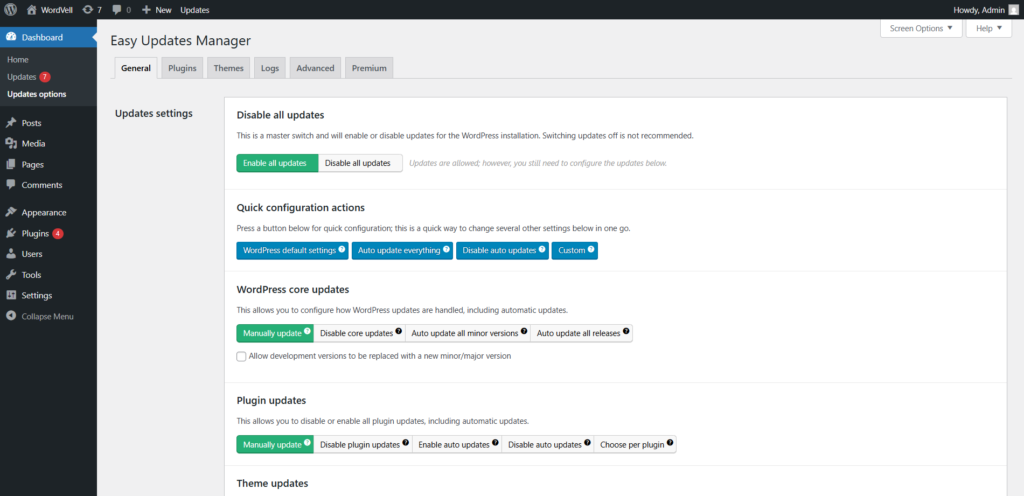
If you want better control, you can use the Easy Updates Manager Plugin.
Develop a preference for you to use plugins from WordPress.org or reputable commercial vendors with active support and clear changelogs.
For AI-related plugins, set a rule for you: only download and use that plugin which must have 1,000+ active installs, recent updates, visible maintenance, and real user adoption.
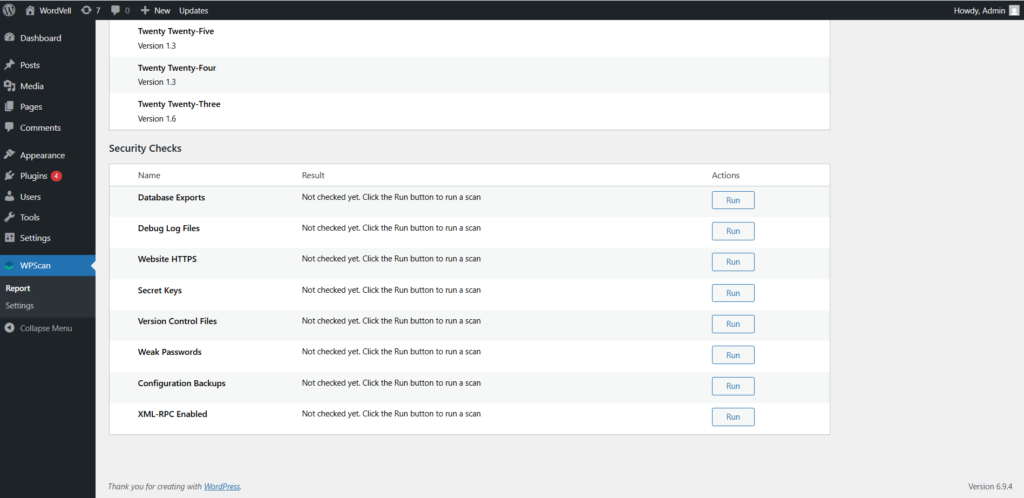
Install the WPScan plugin and run a scan of your site monthly to detect vulnerable plugins, themes, and exposed components.
SSL/TLS encrypts data while it moves between systems. It protects the transfer of data between a visitor’s browser and your server, but now it also does the same between your AI tools and the WordPress REST API.
Without encryption, your login tokens, Application Passwords, prompts, API keys, and content payloads can travel as readable text across networks. Anyone who can intercept that traffic can steal it.
So, the SSL/TLS protects against man-in-the-middle attacks, where someone secretly captures or alters communication between your automation tool and WordPress.
Google Transparency Report shows that the 95% of web traffic is now encrypted. Sites still serving over HTTP stand out and often attract easier attack attempts.
Let’s suppose your AI model sends a request through n8n workflow over HTTP instead of HTTPS, which contains WordPress credentials such as Application Passwords. Someone on the same shared network captures that request and now owns valid API access and can trigger actions that they want.
That’s why for AI workflows, every REST API request should use https://. If mixed links exist or HTTP redirects aren’t enforced, some calls may silently fall back to HTTP and become a pathway for a security breach.
There’s also a business cost associated with it. Google has used HTTPS as a ranking signal for years, and browsers like Google Chrome also label HTTP sites as “Not Secure.” That will hurt your site’s trust and conversions.
Majority hosting Providers like Namecheap, SiteGround, and Hostinger provide SSL certificates in their plans. So, you should use these SSL certificates to encrypt your site and data.
You should enforce HTTPS everywhere so that every URL with HTTP can be redirected to HTTPS.
To do this, you can add in wp-config.php:
define('FORCE_SSL_ADMIN', true);In .htaccess, add a 301 redirection to redirect all HTTP to HTTPS.
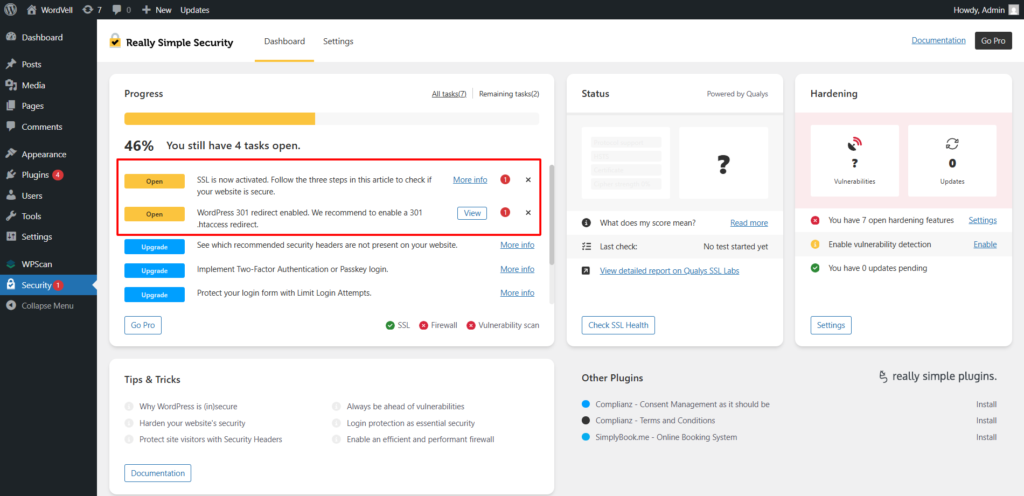
If you find this difficult, you can also use the Really Simple SSL Plugin to fulfill this task.
WordPress REST API routes, such as /wp-json/wp/v2/posts, allow external systems such as AI agents, MCP servers, and automation tools like n8n to communicate with your site. These URLs let outside systems read data, create content, update posts, or trigger workflows.
This is not like normal pages made for visitors, but these API endpoints are built for machine-to-machine access. That makes them powerful and also risky if left exposed.
Securing them means every request must be authenticated, unused routes should be restricted, and all incoming data must be validated before WordPress processes it.
This helps prevent unauthorized access, data scraping, and prompt injection attacks through API inputs.
You need to secure API endpoints because in 2017, a major WordPress REST API vulnerability (CVE-2017-1001000) allowed unauthenticated content modification on millions of sites before patching. The issue came through exposed REST functionality.
Now add AI automation to it. Suppose an attacker submits a prompt containing hidden instructions in LLM. Your AI agent reads submissions and forwards them to your site. The malicious prompt tells the agent to export post data or rewrite live content if you don’t add proper checks.
Any AI system reading forms, WooCommerce orders, comments, or post content can be manipulated if inputs are passed directly into models without filtering.
The damage can include scraped content, spam pages, SEO penalties, leaked customer data, or compliance issues.
You should use Application Passwords, API keys, or token-based authentication so only approved systems can access routes. Never rely on public endpoints for sensitive actions.
If you have highly sensitive data and still need to connect with external sources, then you can allow only trusted servers or providers using IP allowlists, firewall rules, or reverse proxy controls.
And for AI automation, you can create dedicated low-permission users. (See Best Practice #2.)
All API traffic must use HTTPS so that the data, such as tokens, credentials, prompts, and payloads, remains encrypted in transit. (See Best Practice #4.)
Before processing AI-submitted content, you must use native WordPress sanitization functions such as sanitize_text_field(), sanitize_email(), and wp_kses_post().
This is one of your strongest prompt injection defenses.
You can use REST API Toolbox or server-side Nginx/Cloudflare rate limits to reduce abuse, scraping, and brute-force requests.
These protocols are all followed by WordPress during the development of its default APIs. But if you develop your own APIs than you should keep these in mind.
Expert Tip: Treat every external request in your AI workflow as potentially hostile. Add a validation layer between WordPress data and any LLM call.
Here, the secrets mean credentials that unlock access. These include API keys, database passwords, LLM provider keys, Application Passwords, and webhook tokens.
Critical files mean files that save confidential data, which include wp-config.php, .env, .htaccess, and server configuration files. These often contain database credentials, paths, and security rules.
In AI automation setups, your Make scenarios, n8n workflows, custom scripts, or AI automation plugins usually depend on these values. If an AI agent or an attacker can read them, they can become a source of a security breach.
This is called secret exfiltration, which means that sensitive credentials are being exposed to systems that should never access them.
GitGuardian’s State of Secrets Sprawl report found 12.8 million new hardcoded secrets exposed in public GitHub repositories. Many came from WordPress developers accidentally pushing .env or config files.
The business impact can be brutal, such as leaked database credentials that can expose customer data, while stolen AI keys create unexpected bills and abuse complaints.
You should keep secrets outside the WordPress files and load them using getenv('API_KEY'). For this purpose, you can use server environment variables or a secrets managers to store your secret data.
It helps you in reducing the exposure of secret data in codebases and backups. But it requires hosting access and cleaner deployment processes to use these features.
You should deny web and AI access to wp-config.php and .env using .htaccess in Apache Servers and using server rules in Nginx to prevent data leak and full site loss.
It will help you to stop direct browser and AI requests to these sensitive files, but make sure to avoid mistakes there because wrong rules can affect unusual server responses.
You should rotate API keys quarterly or immediately after suspected exposure using your provider dashboard.
It will make your Old leaked keys become useless, but don’t forget to update them in the connected AI tools and workflows so that they continue to work properly.
A WAF (Web Application Firewall) sits in front of your WordPress site and filters malicious traffic before it reaches your server. It helps you to block SQL injection, XSS attempts, abusive bots, DDoS attacks, and suspicious requests.
Multi-layer protection means using more than one defensive checkpoint. A smart setup usually combines a network endpoint firewall like Cloudflare, an application firewall inside WordPress, and server-level rate limiting. If one layer misses something, another can catch it.
This is especially valuable when your site uses AI chatbots or custom API routes that attackers love to probe.
You must implement it because it prevents DDoS attacks, and Cloudflare’s Q4 2025 DDoS report showed a 121% rise in hyper-volumetric DDoS attacks.
Sites with AI features are often seen as higher-value targets because they may expose APIs, data, or expensive compute resources.
Let’s suppose an attacker floods your chatbot endpoint with 50,000 requests per minute. generating $2,000 in LLM API costs in an hour while crashing your site.
A properly configured WAF with route-based rate limiting can stop that traffic before it becomes downtime or cost.
You can set up a Web Application Firewall (WAF) for your site (for free) by integrating Cloudflare with your domain.
You can turn on multiple other Cloudflare features, such as rate limiting, bot fight mode, DDoS protection, and Page Shield, to secure your site.
You can also create custom security rules for sensitive paths, like for API paths, login pages, and chatbot routes.
Follow our complete step-by-step guide to integrate Cloudflare with your WordPress website.
You can install Wordfence and configure its firewall so it loads before WordPress fully runs and secure you site from potential threats before reaching. But it might consume server resources on weaker hosting.
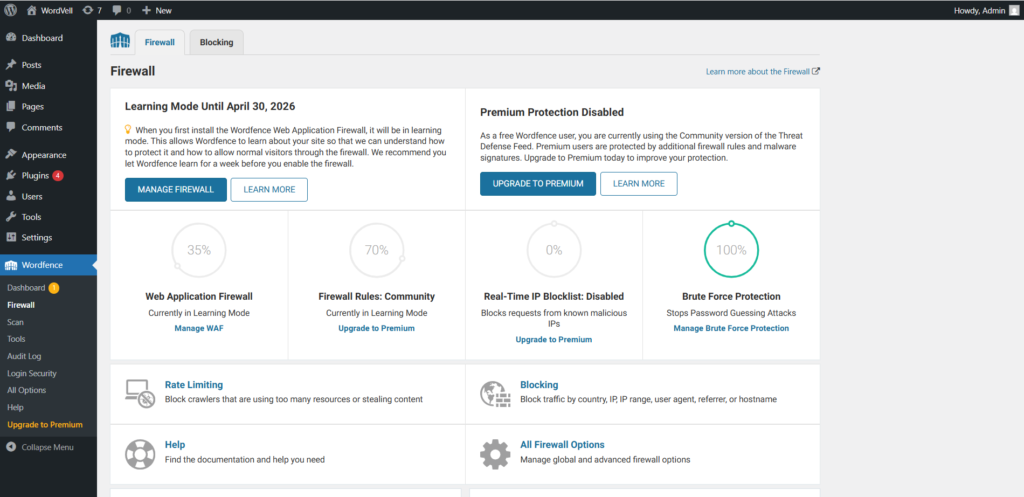
Its premium real-time IP blocklists are also worth considering for AI-enabled sites.
You can ask your host to enable ModSecurity with OWASP Core Rule Set, or configure Nginx/Apache rate limits and request filters.
You can do it yourself by going to the Hosting panel → Security tools → ModSecurity, but it is better to ask support to activate it if you don’t have much technical knowledge.
It blocks attacks at the web server layer, but poorly tuned rules may block valid traffic.
So, firewalls at multiple layers can give you time, visibility, and breathing room when attacks hit.
Logging means keeping a record of actions happening on your WordPress site, such as logins, content edits, plugin changes, failed attempts, and actions performed by your AI agents.
Auditing means reviewing those records with a purpose. You look for strange behavior, unexpected content changes, suspicious access patterns, or automation actions outside their intended scope.
This helps you catch breaches, mistakes, and AI misbehavior before they become expensive disasters.
IBM’s Cost of a Data Breach research has repeatedly shown that the average breach dwell time (time between initial access and detection) is 194 days.
Without logs, you may have no idea when access started, what changed, or how deep the damage goes.
AI agents add another layer of complexity because they can act fast and at scale. If 30 posts were edited overnight, was that a scheduled workflow, a broken automation, or a compromised account? With log records, you can catch it.
If it remains undetected, then it can lead to SEO losses, trust damage, and legal risk if false or sensitive information is published.
You should use WP Activity Log or Simple History plugins to track logins, REST API actions, post edits, plugin changes, and failed attempts.
With this, you can gain a searchable timeline of site activity, but make sure to review and delete it regularly. Otherwise, logs can grow large over time.
You should configure your AI agent to write a log entry to a custom file for every action it takes. This gives you human-readable AI activity history without digging through server logs.
You can review the AI actions for automation, but it requires technical setup.
You should export your logs to services like Papertrail or Logtail periodically because attackers can easily erase evidence from your server.
But it will cost you Extra for large sites.
You should schedule a weekly review focused on your user and AI agent accounts and unusual patterns because small reviews prevent big surprises later.
Human-in-the-loop (HITL) means an AI agent should not be allowed to complete destructive or irreversible actions on its own. Before something risky happens, such as deleting posts, publishing live content, changing settings, or managing users, a human must review and approve it first.
This is one of the smartest controls you can add to WordPress automation because AI can be fast, confident, and wrong at the same time.
It protects you from compromised automations, bulk mistakes, and any destructive action that spreads across your site in minutes and cannot be reversed.
In 2024, Air Canada’s AI chatbot gave passengers incorrect refund policy information. Due to this, the airline was held legally liable. The system answered wrongly, but the business remained responsible.
The same principle applies to WordPress automation. If your AI publishes false claims, content, or pricing pages, users won’t blame the model, but they’ll blame you.
Many developers remove approval steps to save time. That works for low-risk tasks like drafting content or resizing images. It becomes dangerous when AI can publish, delete, or alter production settings without review.
So, the Speed is useful, but unchecked speed will cost you like a ticket challan on the highway.
You should classify every AI task into low, medium, and high risk.
It will help you automate safely without slowing everything down, but it requires proper planning for each workflow upfront.
You can route high-risk actions through n8n and Make workflows that send Slack or email approval requests with Approve / Reject buttons before execution.
With this, you can keep final control while still using automation speed.
You should configure your WordPress AI user with Contributor or Author permissions focused on drafts, while a human editor handles final publishing.
It will prevent any unauthorized action on your site.
You should keep a backup of your site enabled so that the mistakes become recoverable.
For high-impact actions, AI should recommend, while humans should decide about the final approval.
Backups are saved copies of your WordPress site, database, media, and settings. They are your recovery mechanism when everything else goes wrong.
If an AI workflow breaks content, deletes records, corrupts data, or an attacker gets in, backups give you a clean point-in-time restore.
Instead of rebuilding from zero, you can recover to the same position.
Sucuri’s hacked website report has repeatedly shown 39% of compromised sites had no recent usable backup. When that happens, recovery becomes slow, expensive, and sometimes impossible.
AI automation increases the stakes because it works fast and at scale. One flawed workflow can update thousands of posts, change prices, overwrite metadata, or delete records before anyone notices.
For eCommerce sites, membership platforms, or lead-gen businesses, even a few hours of downtime can mean real revenue loss.
That’s why a backup strategy should be built into your AI rollout plan.
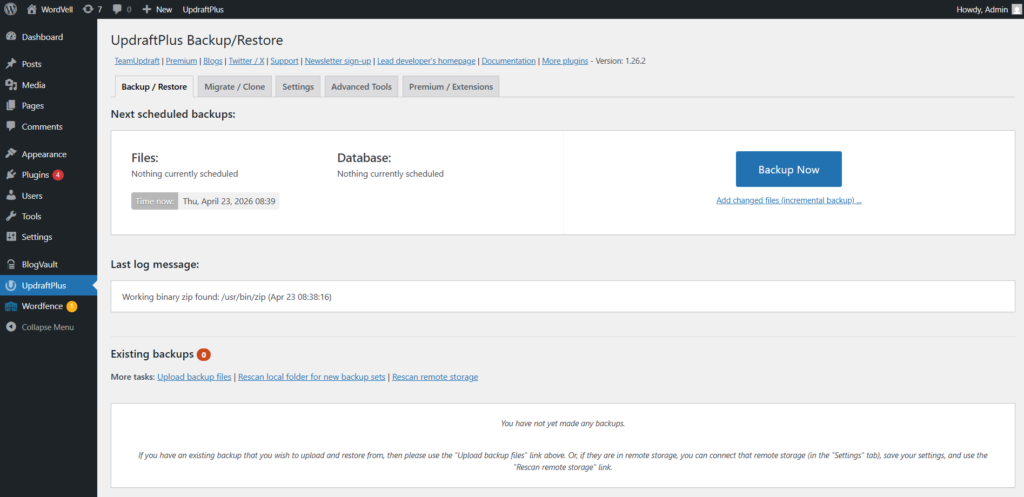
You should use UpdraftPlus or BlogVault WordPress plugins for scheduled backups. You can configure daily full backups and can also use incremental backups by BlogVault, which only add new changes to the backup.

If anything happens to your site, you recover quickly with minimal manual work, but the Premium features of these plugins may cost you extra.
You should store backups to Amazon S3, Google Drive, or Dropbox instead of only your server or local device. If your server got hacked or your devices got corrupted, then you will still have backups stored.
You should run restore tests on staging every quarter because it will tell you how backups actually work when needed.
You should retain backup versions for at least 30 days because it helps recover from issues discovered late.
Security testing means trying to break into your own site before attackers do. You intentionally test weak spots, permissions, plugins, APIs, and login systems so you can fix them early.
AI-specific attack simulations go a step further. They test risks introduced by automation, such as prompt injection, stolen API credentials, rate-limit bypass attempts, or fake agents pretending to be trusted systems.
This helps you find gaps in your defenses before someone else finds them first.
The Wordfence Bug Bounty Program paid out significant rewards in its early years to the researchers who kept finding serious WordPress vulnerabilities through structured testing.
That tells you something important: flaws are common, but with proper testing, you can catch them earlier.
Traditional WordPress scans often focus on outdated plugins, malware, and brute-force attacks. They usually miss AI-specific issues like dangerous prompt handling, over-permissioned automation accounts, or broken API authentication flows.
If a breach is made by an attacker, it can cause downtime, leaked data, lost trust, and emergency cleanup.
A flaw found early by your own testing gives you an extra protection layer.
You should use WPScan monthly to check vulnerable plugins, themes, and exposed users so that you can catch common weaknesses fast.
You should submit safe test payloads through forms, chat widgets, comments, or any input your AI reads, then verify your sanitization layer blocks these malicious instructions.
It will help you expose hidden AI workflow risks before they are exploited by a hacker.
You should test protected API routes with no credentials, expired tokens, and low-privilege users using Postman.
It can reveal broken access, which you can manage and control quickly.
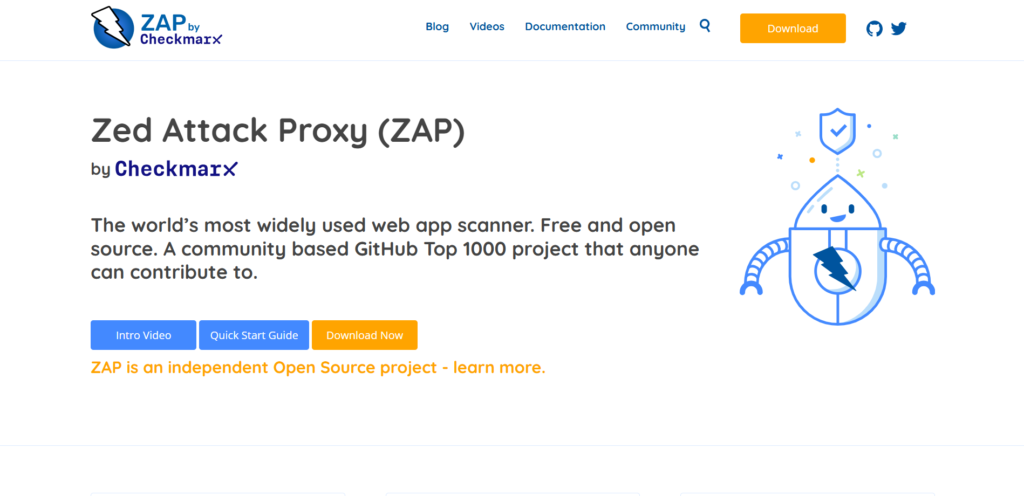
You should use ZAP to scan your WordPress site and REST API surface. It is a strong free security testing tool that will help you find vulnerabilities in your site’s security.
You can hire specialists for yearly deep testing if AI automation is critical in your business. It will help expert eyes to catch what tools miss.
But you will have to bear a high cost, so only use it when it is highly important for you.
Expert Tip: Build a repeatable checklist for every new AI integration. Test security before its launch so that no troubles after it.
AI automation can make WordPress faster, smarter, and more efficient, but it also expands your attack surface.
The moment bots, agents, the MCP servers, and external workflows start reading or changing your site, security becomes a core requirement. If it is not handled, it can have severe negative consequences.
That’s why these 11 best practices in this guide are important for you to implement to secure your WordPress site for AI automation.
If you need a practical starting point, focus first on these high-ROI moves: #1 Strong Authentication, #2 Access Control, #3 Clean and Updated Environment, #4 SSL/TLS Encryption, and #10 Backups. These practices are easy to implement and also close common attack paths before you invest in more advanced layers.
There is an honest tradeoff I want to mention. More security adds friction, just like extra approvals, stricter permissions, more reviews, and tighter workflows. So, make sure to balance it. Otherwise, either your security gets compromised, or you, your team, and users get frustrated.
Keep in mind that AI attacks are evolving quickly. Prompt injection techniques, automated scanners, and smarter abuse tools will continue to grow. The practices above are strong foundations, but they should be reviewed regularly as new attacks or technologies emerge.
At WordVell, we publish a weekly newsletter to share WordPress resources, guides, and updates with our AI-native WordPress community. Be sure to join us to access these valuable resources.