Discover the
Modern
WordPress with WordVell

A child theme is one of the safest and most practical ways to customize a WordPress website while still using all the functionality, design structure, and updates of the parent theme.
Without a child theme, direct modifications inside the parent theme can quickly create long-term problems. A simple theme update can overwrite your custom style, template changes, or added functionality within seconds.
That’s why, instead of modifying parent theme files directly, a child theme is developed to keep your customizations isolated and organized. This gives you the flexibility to customize styling, override template files, add new functionality, and experiment safely, all without affecting the original theme files or risking the loss of your changes.
So, in this guide, you will learn:
A child theme is an extension of a parent theme. It inherits all of the parent’s design and functionality, but lets you override its parts, such as templates, styles, or functions, without touching a single file in the parent.
Instead of modifying parent theme files directly, you place your modifications in the child theme, and WordPress automatically loads your version in place of the parent’s.
In real projects, this setup protects your customizations from being wiped out when new updates roll in for the parent theme.
WordPress itself recommends using child themes for any kind of modification, especially when you want long-term stability and maintainable code.
At its core, a child theme lets you customize a site’s appearance and behavior while keeping all your changes separate from the parent theme files. That separation is the whole point.
You inherit everything from the parent, such as design, structure, functionality, but keep your modifications stored separately.
In real-world projects, this plays out in a few specific ways. You can add a style.css file to the child theme and write CSS overrides without ever opening the parent’s stylesheet. You can copy a template file like header.php into the child theme folder, modify it, and WordPress will use your version automatically. The parents’ version stays unchanged.
You can also extend functionality through functions.php without interfering with the core theme logic.
There is also a workflow benefit that does not get talked about enough. You can use a child theme as a sandbox to test new designs or experimental features on a staging environment without affecting the stability of the parent theme.
You can try things, break things, fix them, and iterate. If something goes wrong, you deactivate it, and the parent theme takes over immediately.
Child themes also solve one of the most frustrating issues developers run into that they lose custom work after a theme update. When the parent theme pushes security patches or new features, you can update it confidently, knowing your changes won’t disappear or break unexpectedly.
It is necessary to know when to use a child theme and when not to because the right choice will help you focus on your goal without wasting time and effort.
Here are the scenarios where building a child theme is the right call for you:
header.php or single.phpfunctions.phpOn the other hand, if your changes are minimal, a child theme adds unnecessary complexity without meaningful benefit. Skip it when:
No, WordPress does not support grandchild themes in the traditional sense. The theme hierarchy goes only two levels deep. First is the parent theme, then the child theme. There is no built-in mechanism to chain a third theme on top of this.
But, if you are working with block themes, the picture is slightly more layered, although it is not part of the theme layer:
In that context, user customizations behave a bit like a ‘grandchild’ layer. The key difference is that these changes live in the database, not the filesystem, so they are not part of an installable theme package.
Outside of block themes, there is no standard method for creating an installable grandchild theme.
There are two ways to make a child theme:
Both methods produce the same result, which is a working child theme tied to a parent. We will walk through both.
In this method, you will build all the required files for the child theme yourself from scratch. Follow these steps:
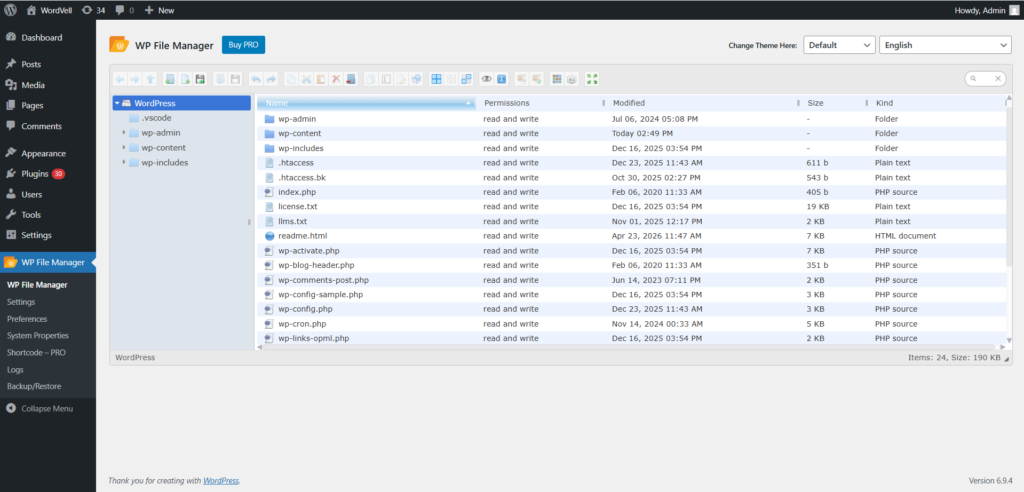
/wp-content/themes/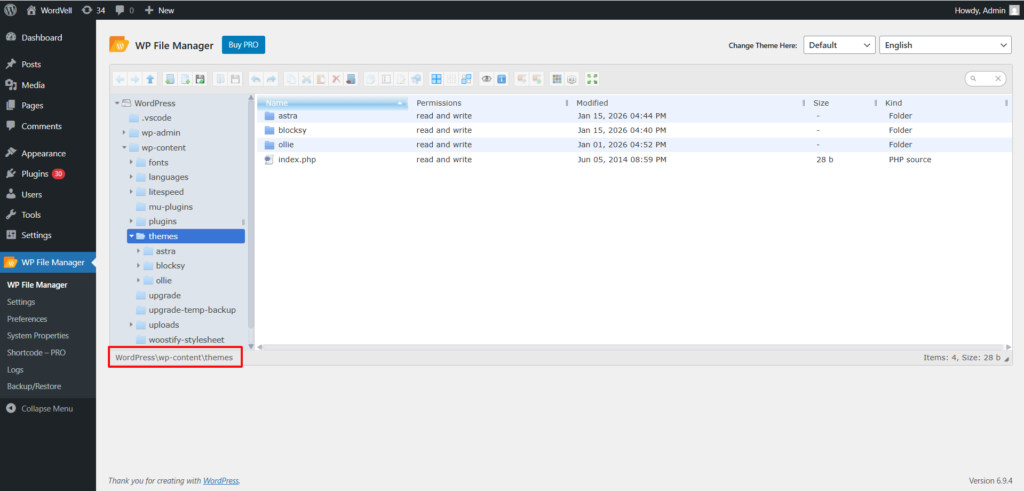
-child. For example, if your parent theme folder is called Blocksy, name the child theme folder: blocksy-child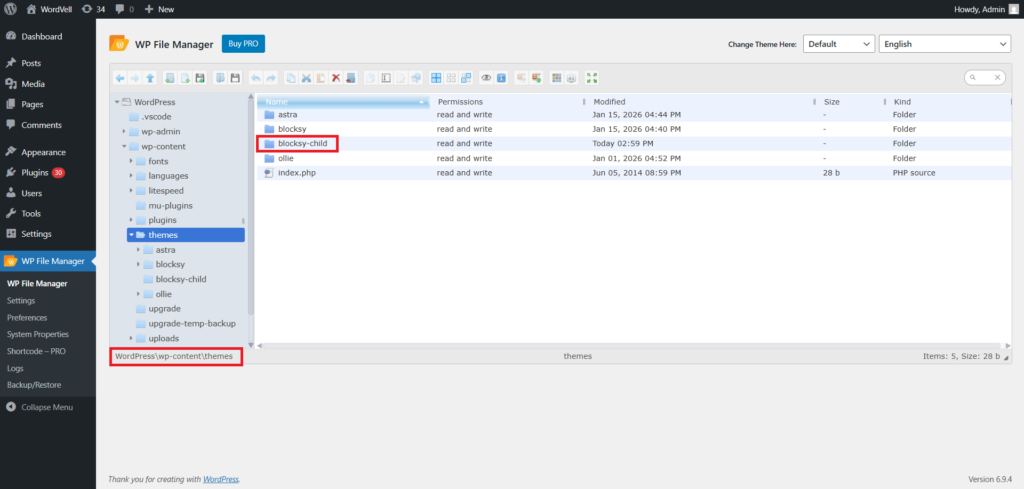
Note: The naming convention is just a recommendation, not a technical requirement. But following it makes it immediately clear which parent the child theme is tied to.
Style.css (Theme Identity + Base Styling)Inside the new folder, create a file named style.css. This file tells WordPress to recognize the theme and display its name and details in the dashboard.
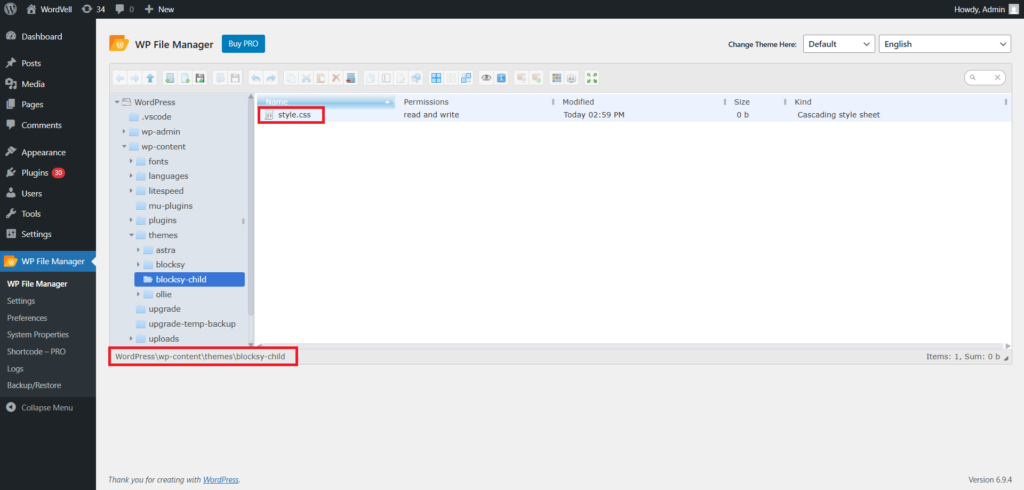
Next, at the very top of the file, add the file header. Here’s the structure:
/*
Theme Name: Your Theme Name
Theme URI: https://yourwebsite.com/
Template: Parent Theme Folder Name
Author: Your Name
Author URI: https://yourwebsite.com
Description: Write a short description of your child theme here.
Tags: custom-background,custom-logo,blog,e-commerce,responsive-layout
Version: 1.0.0
*/
Here is an example using the Blocksy theme as the parent:
/*
Theme Name: Blocksy Child
Theme URI: https://wordvell.com/
Template: blocksy
Author: WordVell
Author URI: https://wordvell.com
Description: Blocksy is a fast, modern WordPress theme with advanced WooCommerce support and full compatibility with the block editor.
Tags: accessibility-ready,blog,block-patterns,e-commerce,wide-blocks,block-styles,grid-layout,one-column,two-columns,three-columns,four-columns,right-sidebar,left-sidebar,translation-ready,custom-colors,custom-logo,custom-menu,featured-images,footer-widgets,full-width-template,theme-options,threaded-comments
Version: 1.0.1
*/
The critical field here is Template. It must exactly match the folder name of your parent theme.
If the parent theme folder is called blocksy but you write Blocksy with a capital B, the child theme won’t load correctly.
functions.php (Fix CSS Loading Issues)In this step, we will ensure that your child themes load both the parent theme’s styles and its own styles correctly.
The reason is that different parent themes handle CSS loading differently, which creates inconsistency across projects.
This inconsistency means you cannot assume the parent’s styles will load just because a child theme is active. Because of this inconsistency, manually enqueueing styles is considered the safer and more reliable approach.
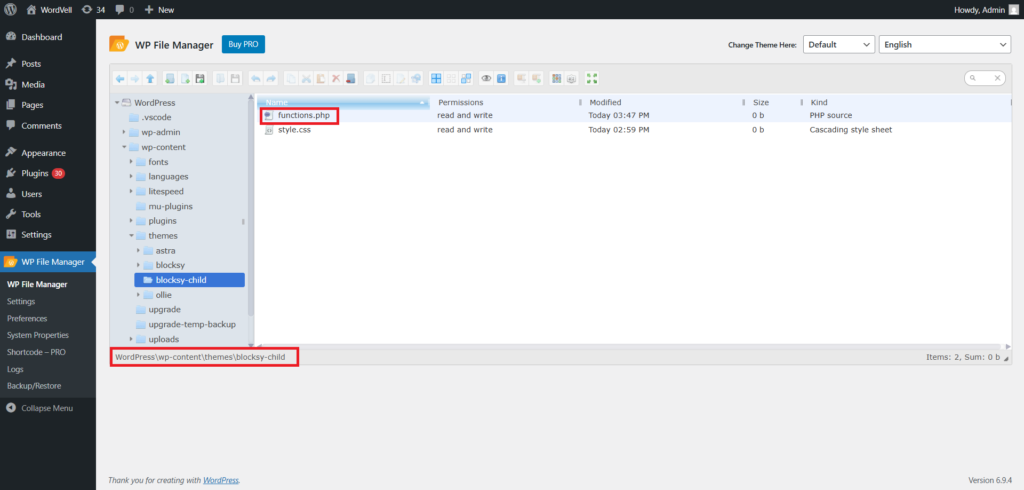
To handle this reliably, create a functions.php file in the child theme folder and add the following code:
add_action('wp_enqueue_scripts', 'my_child_theme_enqueue_styles');

function my_child_theme_enqueue_styles() {
    // Load Parent Theme Style.css
    wp_enqueue_style(
        'parent-style',
        get_template_directory_uri() . '/style.css'
    );

    // Load Child Theme Style.css after Parent Theme Style.css
    wp_enqueue_style(
        'child-style',
        get_stylesheet_uri(),
        array('parent-style'),
        wp_get_theme()->get('Version')
    );
}
This code ensures that:
wp_enqueue_style call forces the parent CSS to load, regardless of how the parent theme handles itSkipping this step is the single most common reason new child themes look broken on activation.
If you created the files inside your host’s File Manager directly under /wp-content/themes/, navigate to Appearance > Themes in the WordPress admin. Your child’s theme should appear there. Click Activate.
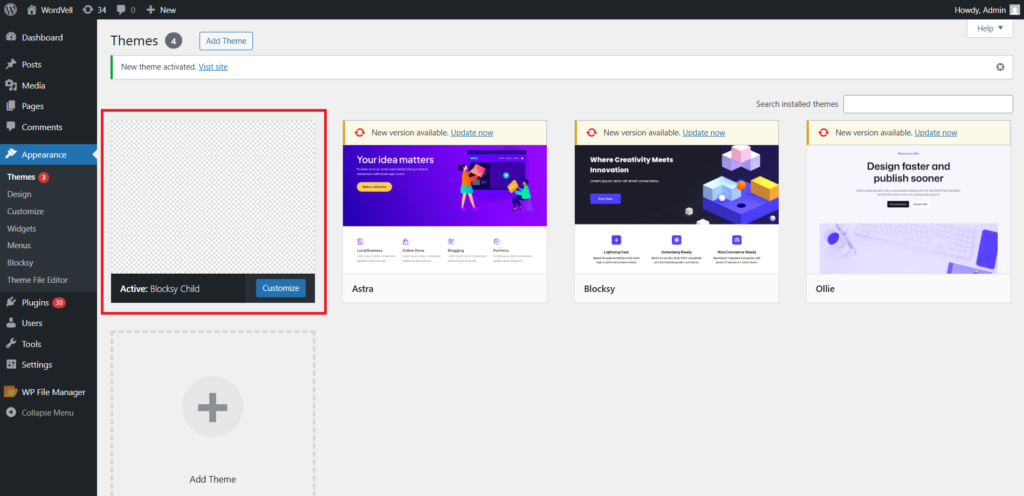
If you built the files locally, zip the child theme folder and upload it. Go to Appearance > Themes > Add New > Upload Theme, select the zip file, and install it. Then activate it from the themes list.
After activation, check the front end. The site should look identical to before because the child theme is inheriting everything from the parent.
If something looks off, go back and verify the Template field in style.css matches the parent’s folder name exactly, and checks whether the stylesheets of parent and child themes are loading properly.
With the child theme active, you are ready to start customizing. Here are the main types of changes you can make:
header.php, single.php, or footer.php, you want to modify from the parent theme into the child theme folder (keeping the same file name and subfolder structure), then edit your copy. WordPress will show your child theme’s version first.functions.php to add new functionality or modify or delete any old ones.Pro Tip: Only copy and override those specific template files you actually need to change. Copying entire folders from the parent theme into the child creates maintenance overhead, and you also lose the benefits of future parent updates on those files.
If you want to skip the manual file creation, plugins like Child Theme Configurator and Create Block Theme do the work for you and also add a few useful extras on top.
For classic themes, you can use Child Theme Configurator to create a child theme. Here is how to do it:
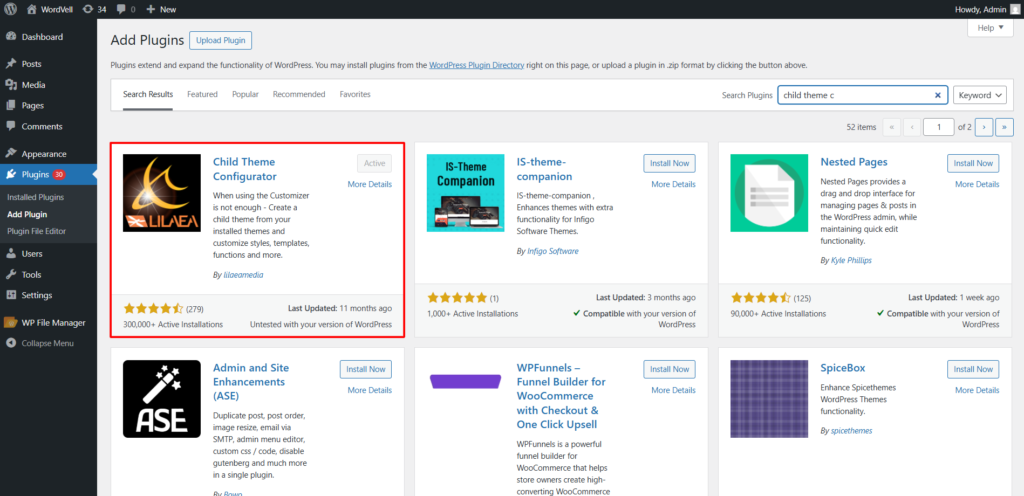
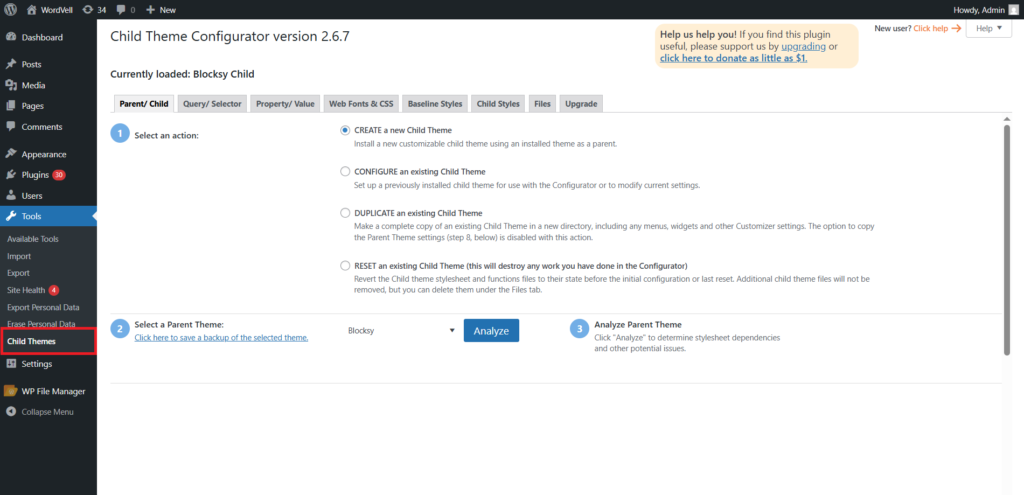
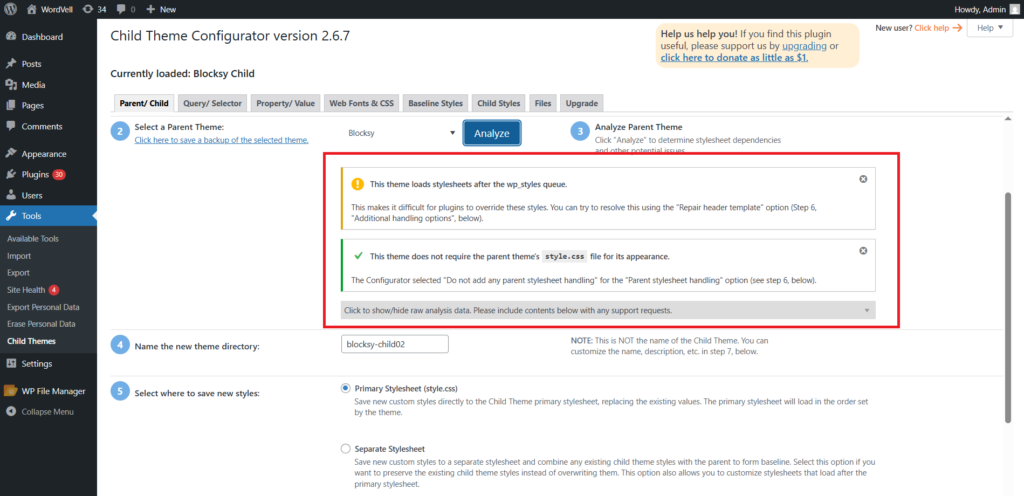
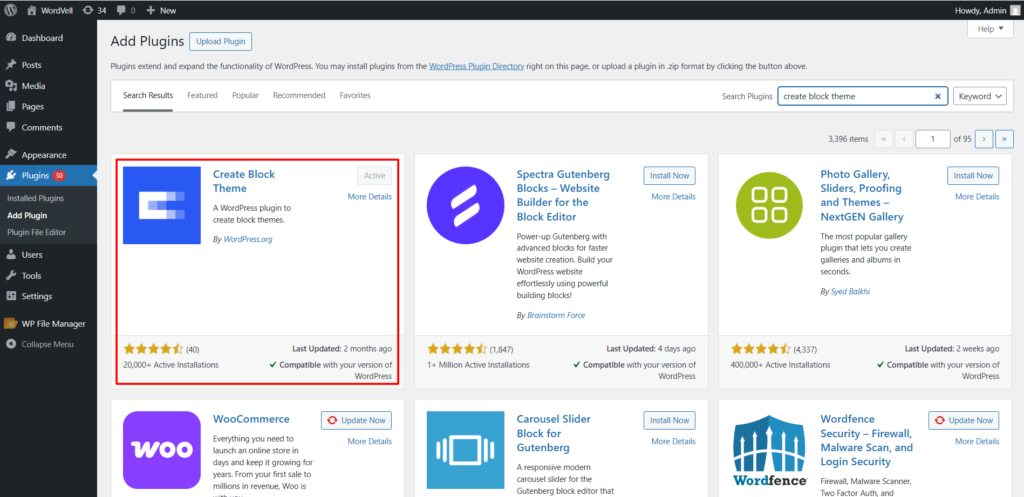
If you are working with block themes specifically, the Create Block Theme plugin (from the WordPress team) is worth using.
It is built around the block theme structure and handles theme.json inheritance rather than traditional CSS enqueueing.
Here’s how you can do it:
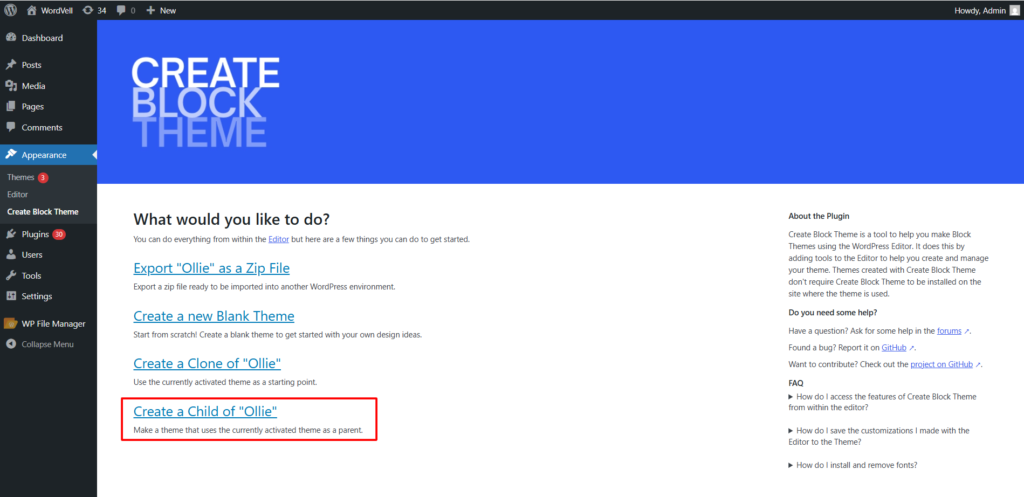
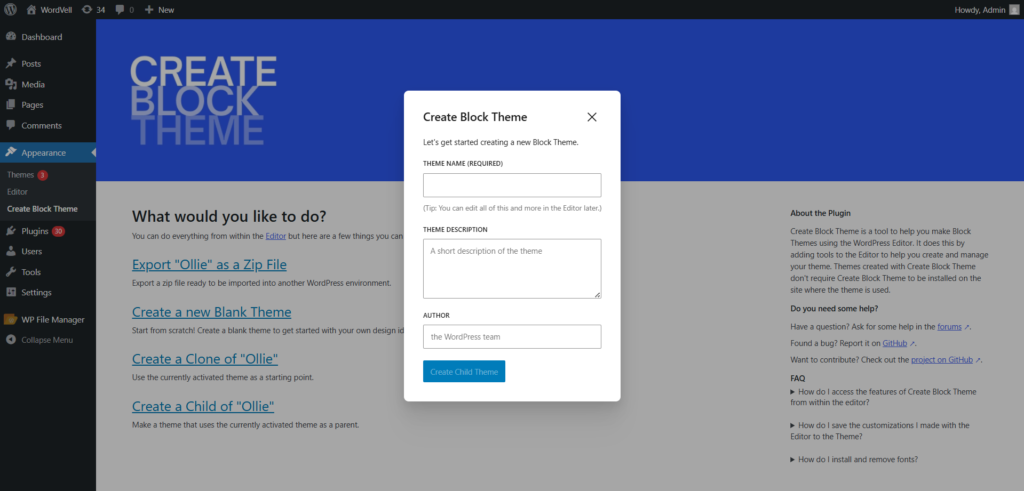
So, this method covers both plugin-based approaches, one for classic themes and one for block themes, so you can pick whichever fits your project.
Using a child theme is one of the safest and most maintainable ways for a WordPress developer to customize a theme.
By separating your custom code from the parent theme, you protect your modifications, remain stress-free from updates, and build a cleaner development environment.
Whether you choose the manual method or the plugin method, both approaches help you create scalable and update-safe WordPress child theme projects.
If you loved the article and want to explore more about modern and AI-native WordPress, then subscribe to our weekly newsletter.
Child themes live in the same location as all WordPress themes: /wp-content/themes/your-child-theme-folder/
You can access this through FTP, WordPress file manager plugin, or your web host’s File Manager.
functions.php in a child theme?Technically no. You can create a child theme with just style.css. But in practice, functions.php is recommended for almost every case. Without it, you cannot reliably control how the parent and child stylesheets load, and you lose the ability to hook into WordPress actions and filters cleanly.
Yes. Block themes support child themes, but CSS handling works differently. Instead of traditional stylesheet enqueueing, block themes use theme.json for design settings and style inheritance. If you’re creating a child theme for a block theme, focus on theme.json overrides and template modifications rather than traditional CSS enqueueing.